Your customers are already on WhatsApp. All 2.78 billion of them.
They’re messaging, calling, and expecting instant responses around the clock. But here’s the problem: your support team can’t answer every call, especially when half of them arrive outside business hours.
That’s where WhatsApp calling chatbots come in.
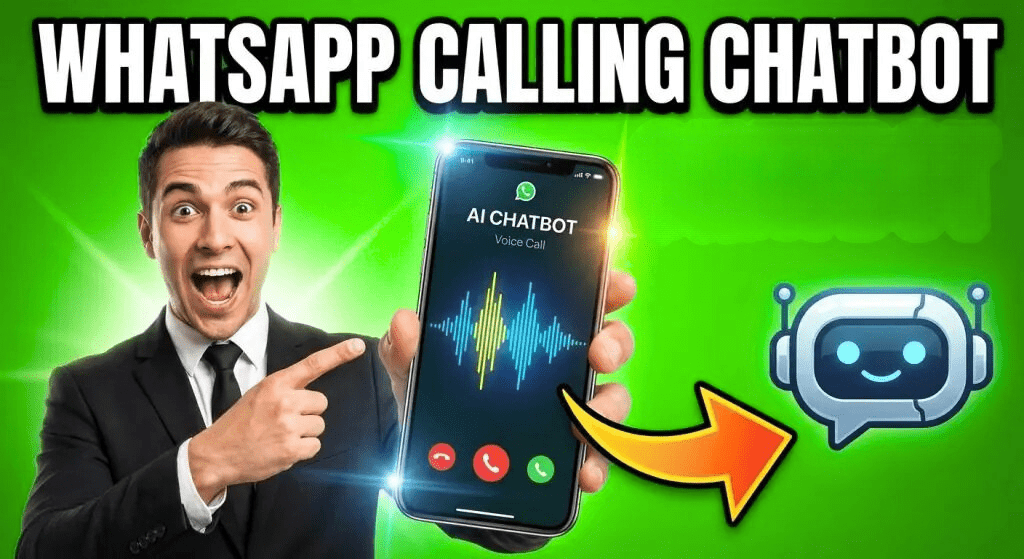
These AI-powered voice bots can handle customer calls automatically, answer questions in natural conversation, and escalate complex issues to human agents—all through the WhatsApp app your customers already trust.
In this guide, you’ll learn exactly how to build a WhatsApp calling chatbot for your business, step by step. No coding required. We’ll use ChatMaxima as our platform because it offers the most straightforward setup, flexible AI provider options, and transparent pricing starting at just $19 per month.
What is a WhatsApp Calling Chatbot?
A WhatsApp calling chatbot is an AI-powered voice assistant that automatically answers voice or video calls made through WhatsApp Business. The WhatsApp Business Platform officially supports voice calling capabilities through authorized Business Solution Providers like ChatMaxima—this isn’t a workaround, it’s a fully supported feature launched by Meta.
Instead of reaching a human agent, customers interact with an intelligent bot that can:
-
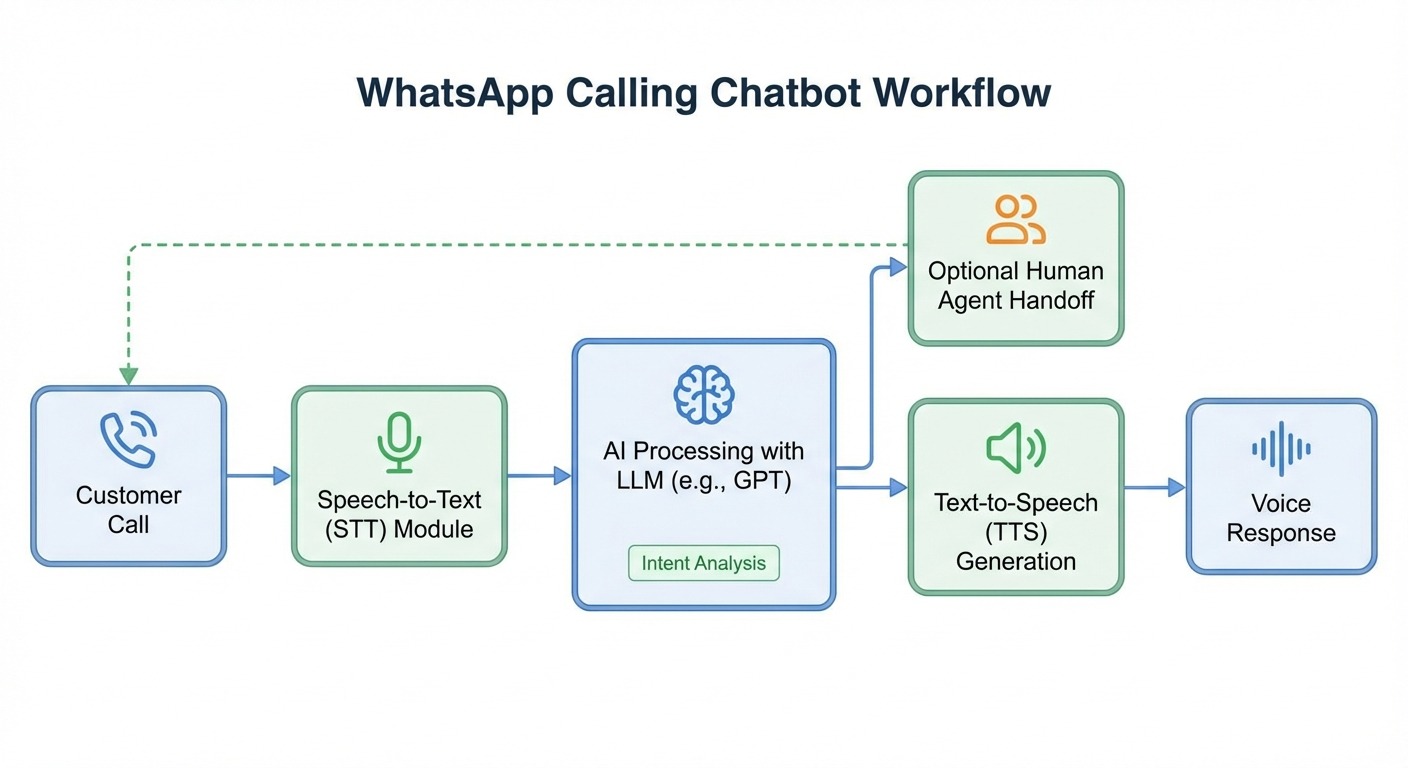
- Understand natural speech using Speech-to-Text (STT) technology
- Process requests using Large Language Models (LLMs) like GPT-4, Claude, or Gemini
- Respond with human-like voice using Text-to-Speech (TTS) from providers like ElevenLabs or Deepgram
- Handle multiple calls simultaneously without making customers wait in queue
- Escalate to human agents when needed for complex issues
Think of it as an IVR system (Interactive Voice Response) but smarter, more conversational, and living inside the app your customers use every day.
Modern STT providers like OpenAI Whisper and Google Speech-to-Text achieve 95%+ accuracy in clear audio conditions. Accuracy drops slightly with heavy accents, background noise, or technical jargon, but you can train the bot to handle your specific use case better over time.
Why Your Business Needs a WhatsApp Voice Calling Bot
WhatsApp isn’t just another messaging app—it’s where your customers live. Here’s why adding voice calling capabilities to your WhatsApp presence is a game-changer:
Reduce Call Center Costs by 40%
Traditional call centers are expensive. According to industry data, businesses implementing WhatsApp voice automation see an average 40% reduction in traditional phone call volume. That’s thousands of dollars saved on agent hours, phone lines, and infrastructure.
98% Message Open Rate Beats Every Other Channel
WhatsApp has a 98% open rate compared to just 15% for email. When customers call your WhatsApp number, they’re already highly engaged and ready to interact.
24/7 Availability Without Night Shifts
Your AI voice bot never sleeps, takes breaks, or calls in sick. It handles calls at 3 AM with the same quality as 3 PM—without paying overtime.
Scale Infinitely During Peak Times
One human agent handles one call at a time. An AI voice bot can handle hundreds of simultaneous calls without degrading quality. Black Friday rush? No problem.
Customers Already Prefer WhatsApp
Your customers don’t want to dial toll-free numbers and navigate phone trees. They want to stay in WhatsApp where they can see call history, switch seamlessly between voice and text, share media during conversations, and call for free over WiFi with no international charges.
Proven ROI Across Industries
Real businesses are seeing measurable results:
-
- Housing.com (real estate): 1.8x increase in conversions
- Reserva (fashion retail): 7X ROI on WhatsApp marketing
- Aramex (logistics): Reduced contact center interactions by enabling WhatsApp voice support
How WhatsApp Calling Chatbots Actually Work
Before we dive into setup, let’s quickly understand the technology stack powering WhatsApp voice bots. You won’t need to configure any of this manually—that’s what ChatMaxima handles for you—but knowing the pieces helps you make better decisions.
The Voice Bot Technology Stack
Speech-to-Text (STT)
Converts the customer’s spoken words into text that AI can process. Popular providers include OpenAI Whisper, Google Speech-to-Text, and Deepgram.
Large Language Model (LLM)
The “brain” that understands what the customer wants and generates appropriate responses. Options include GPT-4, Claude, Gemini, or specialized models from OpenRouter, Groq, and Grok.
Text-to-Speech (TTS)
Converts the bot’s text response back into natural-sounding speech. Premium options like ElevenLabs and OpenAI TTS offer incredibly lifelike voices.
Speech-to-Speech (STS) – Optional Next-Gen Approach
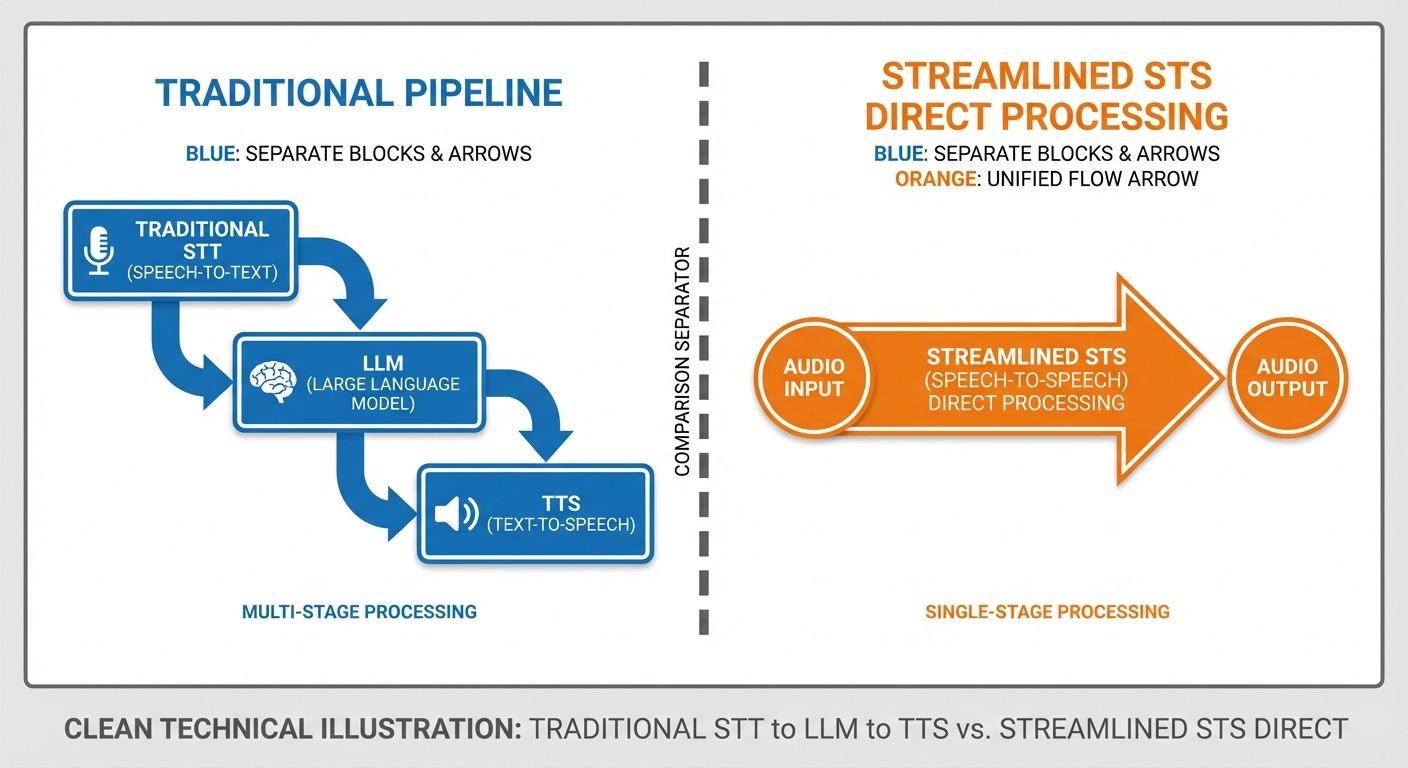
The next-generation approach that skips the intermediate text step entirely. Providers like Gemini, OpenAI, and Azure now offer STS models that process voice input and generate voice output directly—resulting in more natural conversations with better tone and emotion.
The Call Flow
Here’s what happens when a customer calls your WhatsApp Business number:
-
- Call Initiation: Customer taps the voice call button in WhatsApp
- API Reception: WhatsApp Business API receives the call event
- AI Processing: Your voice bot answers using the configured STT/LLM/TTS (or STS) stack
- Conversation: Bot and customer exchange information naturally
- Resolution or Handoff: Bot either resolves the query or transfers to a human agent
- Analytics: Entire interaction is logged for performance tracking
ChatMaxima’s WhatsApp Calling Bot: What Makes It Different
Before we get into the setup guide, here’s why we’re using ChatMaxima as our platform:
No-Code Setup
Drag-and-drop interface. No programming required. Most businesses get their voice bot live in under 30 minutes.
Multiple AI Provider Options
Choose your preferred providers instead of being locked into one vendor:
-
- STT: OpenAI, Google, Deepgram, and more
- LLM: OpenAI, Claude, Gemini, Azure, OpenRouter, Groq, Grok
- TTS: ElevenLabs, Deepgram, Sarvam, Gemini, OpenAI
- STS: Gemini, OpenAI, Azure (next-gen voice-to-voice)
Transparent Pricing
Starting at $19 per month flat rate. No hidden fees, no surprise charges. Compare that to enterprise platforms like Gupshup or Infobip that require custom quotes and often start at thousands per month.
WhatsApp Native
Built specifically for WhatsApp Business API. Embedded Signup flow makes connecting your WhatsApp number seamless.
Flexible Voice Options
Choose between traditional Voice (STT + LLM + TTS) pipeline or cutting-edge Speech-to-Speech (STS) for more natural conversations.
Human Handoff
Seamlessly transfer calls to human agents when the bot encounters complex queries.
How to Build Your WhatsApp Calling Chatbot (Step-by-Step)
Prerequisites
Before you start, make sure you have:
-
- An active WhatsApp Business account (not just the free app—you need API access)
- A ChatMaxima account (sign up at our pricing page if you haven’t already)
- Meta Business Manager access (for WhatsApp verification)
Good news: ChatMaxima’s Embedded Signup flow handles most of the WhatsApp verification automatically. You won’t need to navigate Meta’s complex Business Suite manually.
If you’re already using WhatsApp Business API, you can use your existing number. If you only have the free WhatsApp Business app (not the API), you’ll need to upgrade. ChatMaxima’s Embedded Signup makes this process seamless—no need to manually navigate Meta Business Manager.
Step 1: Add Your WhatsApp Number to ChatMaxima
First, connect your WhatsApp Business number using ChatMaxima’s streamlined signup process:
-
- Log in to your ChatMaxima dashboard
- Navigate to Channels in the left sidebar
- Click WhatsApp then Add Number
- Click “Use Embedded Signup”
- Follow the prompts to authorize ChatMaxima via Meta Business Manager
- Select your WhatsApp Business number (or register a new one)
- Complete verification (usually instant, sometimes takes 24-48 hours for new businesses)
Pro Tip: If you don’t have a WhatsApp Business API account yet, ChatMaxima will guide you through creating one during this step. The Embedded Signup flow eliminates 90% of the typical Meta bureaucracy.
If your WhatsApp Business account is already verified with Meta, you can have a basic voice bot live in 20-30 minutes. If you’re starting from scratch with a new WhatsApp Business API account, add 24-48 hours for Meta verification, then 30 minutes for ChatMaxima setup.
Step 2: Create Your Voice Bot in ChatMaxima Studio
Now let’s build the actual voice bot brain:
-
- Go to ChatMaxima Studio from your dashboard
- Click “Create Chatbot” (big green button, top right)
- Name your bot (e.g., “Customer Support Voice Bot”)
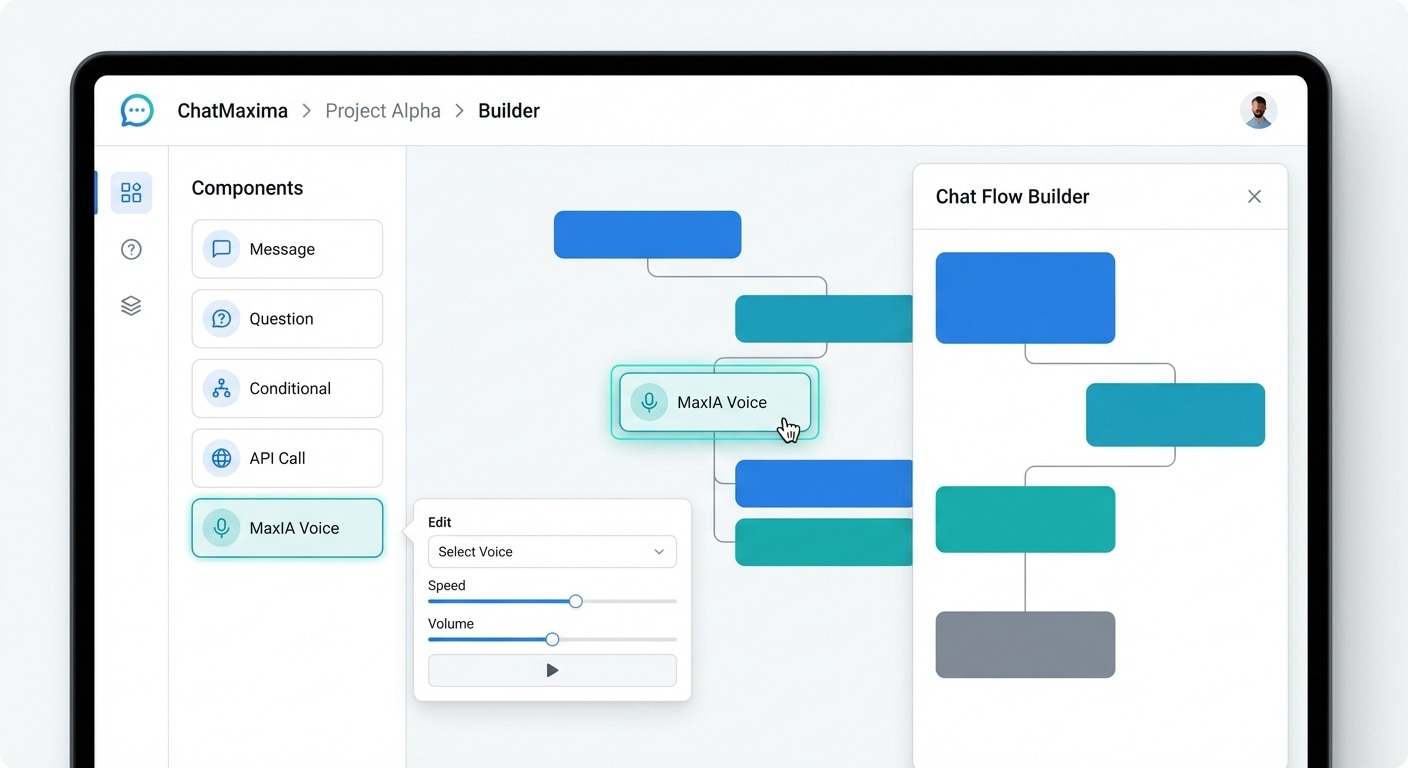
- You’ll see the drag-and-drop canvas. From the left sidebar, find the MaxIA block
- Drag the MaxIA block onto your canvas
- Click the MaxIA block to open its configuration panel
This is where the magic happens. MaxIA is ChatMaxima’s AI orchestration block that handles all the voice processing. ChatMaxima is fully no-code—if you can drag and drop blocks and fill in text fields, you can build a voice bot. The most “technical” part is writing your system instructions, and that’s just plain English.
Step 3: Choose Your Voice Processing Mode
In the MaxIA configuration panel, you’ll see two options:
Option A: Voice (STT + LLM + TTS) – Traditional Pipeline
Best for: Maximum control over each component, budget-conscious setups, custom voice fine-tuning
Option B: Speech-to-Speech (STS) – Next-Gen Direct Processing
Best for: Most natural conversations, emotional tone preservation, faster response times
Which should you choose?
Choose Voice (STT + LLM + TTS) if you want granular control over each AI component or need to use specific providers for compliance reasons. Choose Speech-to-Speech (STS) if you want the most human-like conversations and don’t need to customize each processing stage.
The Voice pipeline gives you more control: Speech to Text to AI Processing to Text to Speech. STS provides a more natural experience: Speech to AI Processing to Speech (direct), with better emotional tone and faster response, but slightly less customization.
For this guide, let’s use the Voice (STT + LLM + TTS) option since it gives you more learning visibility into how each component works.
Step 4: Configure Speech-to-Text (STT)
Still in the MaxIA block settings:
Under “Speech-to-Text Provider”, click the dropdown
Select your preferred STT provider:
-
- OpenAI Whisper (excellent accuracy, good pricing)
- Google Speech-to-Text (great for multilingual)
- Deepgram (ultra-fast, good for real-time)
- Azure Speech (enterprise-grade, HIPAA compliant)
-
If required, enter your API key for the selected provider (or use ChatMaxima’s shared keys for testing)
Select language and dialect (e.g., “English – US”)
Pro Tip: Start with OpenAI Whisper—it offers the best balance of accuracy, speed, and price for most use cases.
ChatMaxima supports 10+ languages depending on your chosen STT/TTS providers. Common options include English, Spanish, French, German, Portuguese, Hindi, Arabic, Japanese, and Mandarin. Check your specific provider’s language support during setup.
Step 5: Configure Text-to-Speech (TTS)
Now let’s give your bot a voice:
Under “Text-to-Speech Provider”, select from:
-
- ElevenLabs (most realistic, celebrity-quality voices)
- OpenAI TTS (excellent quality, fast)
- Deepgram (low latency, great for conversational AI)
- Sarvam (optimized for Indian languages)
- Google/Gemini TTS (wide language support)
-
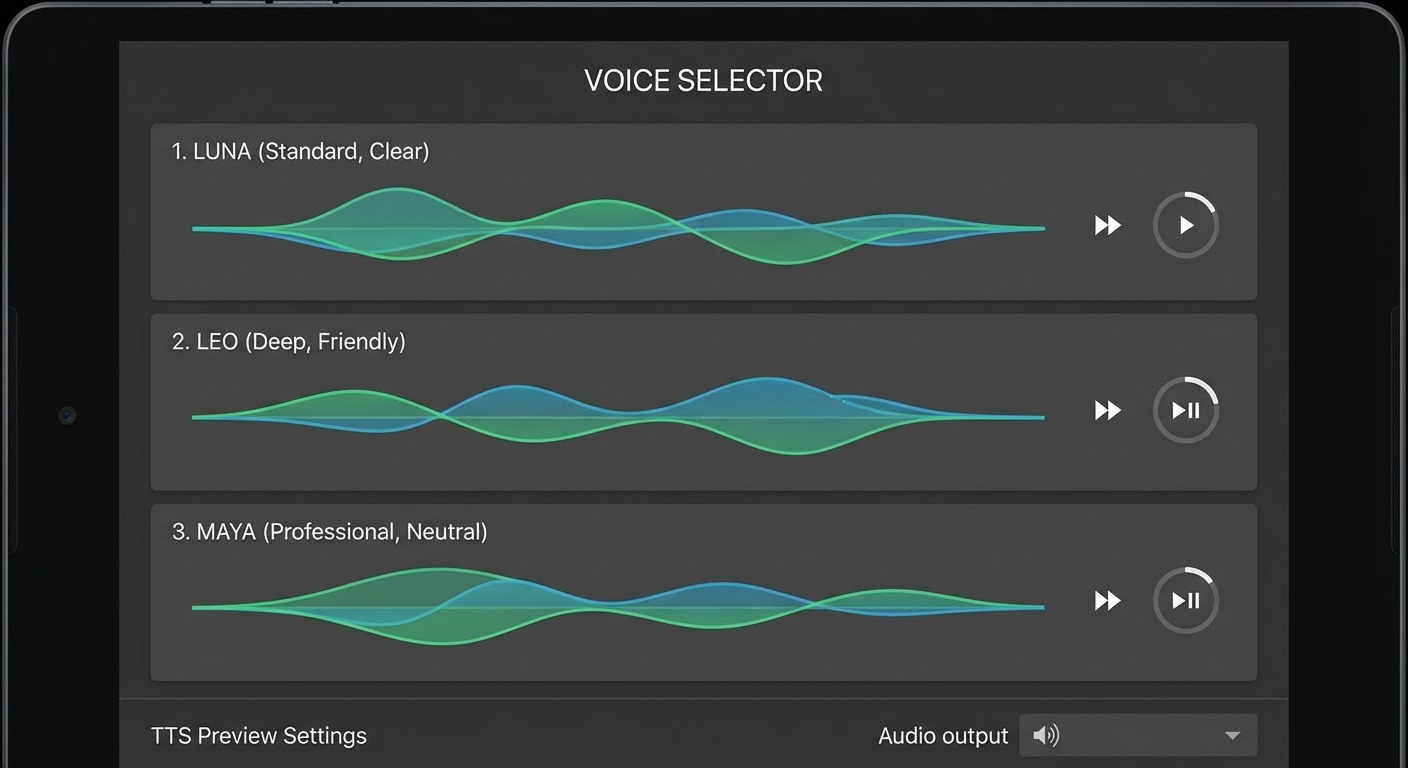
Click “Choose Voice” to browse available voices
Play samples and pick one that matches your brand (professional, friendly, etc.)
Adjust speed and pitch if your chosen provider supports it
You can choose from dozens of voices across multiple TTS providers. Want a British accent? Done. Female voice with warm tone? Easy. Professional male voice? No problem. Some providers like ElevenLabs even let you clone custom voices, though that’s an advanced feature.
Voice Selection Tips:
-
- Customer support bots: Choose warm, helpful voices (think “friendly concierge”)
- Sales bots: Confident, energetic voices
- Banking/healthcare: Professional, trustworthy tones
- E-commerce: Upbeat, conversational
Step 6: Select Your LLM (Language Model)
This is the “brain” that processes what customers say and decides how to respond:
Under “Language Model”, choose your LLM:
-
- OpenAI GPT-4 (best general intelligence, slightly pricier)
- Claude (excellent for nuanced conversations, great safety)
- Gemini (strong multilingual, good value)
- Azure OpenAI (enterprise compliance)
- OpenRouter (access to multiple models)
- Groq (ultra-fast inference)
- Grok (emerging option)
-
Select model version (e.g., GPT-4 Turbo, Claude 3.5 Sonnet)
Enter API key if using your own (or use ChatMaxima’s for testing)
Model Selection Guide:
-
- Start with GPT-4 or Claude for best results
- Use Gemini if you need multilingual support at lower cost
- Choose Groq if response speed is critical
Step 7: Alternative – Configure Speech-to-Speech (STS)
If you chose STS mode instead of the traditional pipeline:
Select your STS provider:
-
- Gemini STS (Google’s integrated voice-to-voice)
- OpenAI STS (GPT-4 with voice capabilities)
- Azure Speech-to-Speech (enterprise option)
-
Choose voice personality from available options
Set language and region
That’s it—STS handles everything in one step!
STS Advantage: Because STS processes voice-to-voice directly without converting to text in between, it preserves emotional tone, inflection, and conversational rhythm better than the traditional pipeline.
Step 8: Enter System Instructions (The Bot’s Personality)
Now you’ll define HOW your bot behaves. This is where you give it personality, knowledge, and guardrails.
In the “System Instructions” text box, enter detailed instructions like:
You are a friendly customer support assistant for [Your Company Name], a [industry] company.PERSONALITY:
-
- Warm, helpful, and patient
- Professional but conversational
- Empathetic to customer frustrations
KNOWLEDGE:
-
- Our business hours: Monday-Friday, 9 AM – 6 PM EST
- Return policy: 30-day money-back guarantee
- Shipping: 3-5 business days for US orders
- Common products: [list your top products/services]
CAPABILITIES:
-
- Answer questions about products, shipping, and returns
- Check order status (you can look this up by order number)
- Schedule callbacks with human agents
- Troubleshoot common issues like [list common problems]
LIMITATIONS:
-
- You CANNOT process refunds directly (transfer to human agent)
- You CANNOT access customer credit card details
- For complex technical issues, say: “Let me connect you with a specialist”
CONVERSATION STYLE:
-
- Keep responses under 30 seconds of speaking time
- Ask clarifying questions if request is unclear
- Always confirm understanding before taking action
- End each interaction by asking “Is there anything else I can help with?”
ESCALATION TRIGGERS:
Transfer to human agent if:
-
- Customer asks for a manager
- Issue requires refund/account modification
- Customer is frustrated after 2 failed resolution attempts
- Request is outside your knowledge base
Pro Tip: The more specific your instructions, the better your bot performs. Include actual examples of how to handle common scenarios.
You should configure fallback responses in your system instructions, like: “I didn’t quite catch that. Could you rephrase?” After 2-3 failed attempts, the bot should automatically offer to transfer to a human agent.
Step 9: Connect Your Voice Bot to WhatsApp
Final step—let’s activate your bot on WhatsApp:
-
- Save your MaxIA block configuration (click “Save” in the bottom right)
- Click “Publish” to activate your chatbot
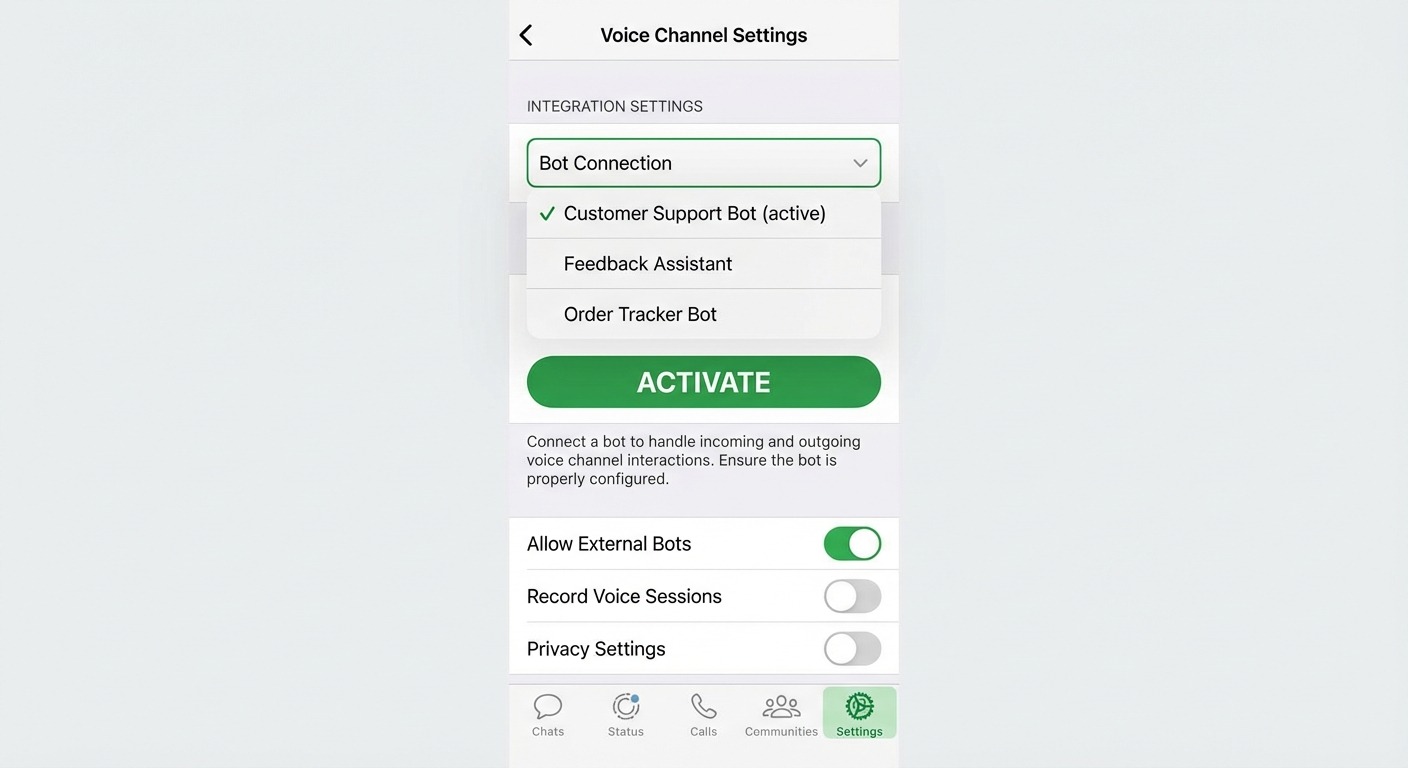
- Navigate to Channels then WhatsApp Voice
- Find your connected WhatsApp number in the list
- Click “Actions” (three dots) next to your number
- Select “Connect Voice Bot”
- Choose the voice bot you just created from the dropdown
- Click “Activate”
Your WhatsApp calling chatbot is now live.
Step 10: Test Your Voice Bot
Before unleashing it on customers, test thoroughly:
-
- Call your WhatsApp Business number from your personal phone
- Try common customer questions:
-
- “What are your business hours?”
- “I need help with order #12345”
- “Do you offer refunds?”
- Test edge cases:
-
- Ask something outside the bot’s knowledge
- Request transfer to human agent
- Try interrupting mid-sentence
-
- Check different scenarios:
-
- Background noise
- Accents and speaking speeds
- Multilingual requests (if supported)
-
Testing Checklist:
-
- Bot answers within 2-3 seconds
- Voice is clear and natural (not robotic)
- Bot understands questions accurately
- Responses match your system instructions
- Escalation to humans works smoothly
- Call logs appear in ChatMaxima analytics
If something doesn’t work right, go back to your MaxIA block, adjust system instructions or provider settings, republish, and test again.
Customers can seamlessly switch between voice and text during a call—that’s the beauty of WhatsApp. If a customer prefers to type instead of speaking mid-conversation, they can do so without breaking context. Your bot handles both modalities.
Best Practices for WhatsApp Voice Bots
You’ve built your bot. Now let’s make it great.
Keep Responses Conversational and Concise
Voice is different from text. Long paragraphs don’t work. Structure responses like this:
Bad: “Thank you for contacting us. Our company policy regarding returns states that all products may be returned within 30 days of purchase for a full refund, provided they are in original condition with tags attached…”
Good: “Sure! You can return any item within 30 days for a full refund. Just make sure it’s unused with tags still on. Want me to send you a return label?”
Rule of thumb: If a response takes more than 20-25 seconds to speak, break it into chunks and ask if the customer wants more details.
WhatsApp doesn’t impose hard limits on call duration, but best practice is to keep voice bot interactions under 5 minutes. Longer calls should escalate to humans. If a call is going past 5 minutes, your bot is probably either handling something too complex (should escalate) or looping without resolution (needs better system instructions).
Always Offer a Human Escape Hatch
No matter how smart your AI is, some customers will want to talk to a person. Make it easy:
-
- “If you’d like to speak with someone on my team, just say ‘agent’ at any time.”
- Include this option in your main menu
- Don’t force customers to “prove” they need a human
Pro Tip: Track what triggers human escalation requests. If 30% of customers ask for an agent during billing questions, your bot probably needs more billing knowledge.
Use Confirmations for Important Actions
Before doing anything irreversible, confirm:
Bad: “I’ve canceled your order. Have a nice day!”
Good: “Just to confirm—you want to cancel order #12345 for the blue sweater? Say ‘yes’ to proceed or ‘no’ to keep the order.”
Handle Silence Gracefully
Sometimes customers pause to check information. Don’t panic:
[After 5 seconds of silence]“Take your time. I’m here when you’re ready.”
[After 15 seconds]
“I’m still here. If you need a moment, just say ‘wait’ and I’ll check back in 30 seconds.”
Optimize for Your Top 5 Use Cases
You can’t handle everything perfectly on day one. Focus on the 5 most common reasons customers call, and make your bot excellent at those:
-
- Check order status
- Return/refund questions
- Store hours and location
- Product availability
- Basic troubleshooting
Handle the 80% of common questions flawlessly, and gracefully escalate the remaining 20%.
Monitor and Iterate Weekly
Set a recurring task:
Week 1:
-
- Review all call transcripts
- Identify where the bot got confused
- Update system instructions
Week 2:
-
- Analyze escalation rate
- Add FAQ responses for common questions
- A/B test different voice options
Week 3:
-
- Check customer satisfaction scores
- Optimize response length
- Add new capabilities
Voice bots aren’t “set and forget.” The best ones improve every week based on real customer interactions.
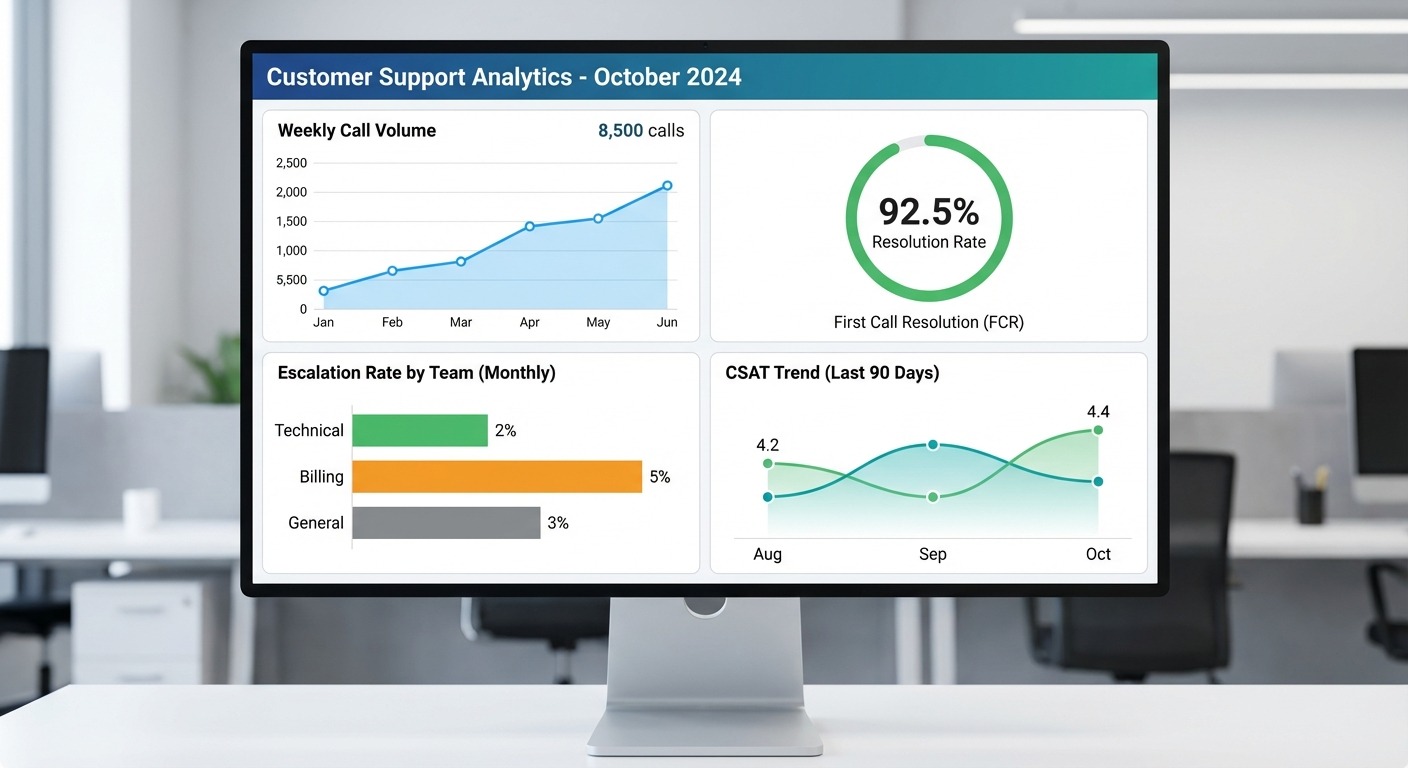
ChatMaxima provides a built-in analytics dashboard showing total calls handled, average call duration, resolution rate (calls solved by bot vs escalated), most common questions, and customer satisfaction scores if you enable post-call surveys.
Pricing: What Does a WhatsApp Calling Chatbot Actually Cost?
Let’s break down the real costs (as of 2026):
WhatsApp Business API Pricing (from Meta)
Conversations are FREE up to 1,000 per month, then:
RegionUser-InitiatedBusiness-InitiatedUnited States$0.080/conversation$0.016/conversationUnited Kingdom$0.090/conversation$0.018/conversationIndia$0.020/conversation$0.004/conversationBrazil$0.085/conversation$0.017/conversation
What counts as a conversation?
A 24-hour window of messaging/calling between you and a customer. If a customer calls you Monday at 2 PM, then texts you Tuesday at 1 PM, that’s just ONE conversation (because it’s within 24 hours).
User-initiated vs Business-initiated:
-
- User-initiated = Customer contacts you first (cheaper)
- Business-initiated = You reach out to customer (slightly more expensive)
Most voice bot calls are user-initiated, so you’ll pay around $0.08 per call in the US (or FREE if under 1,000/month).
For customers: It’s FREE if using WiFi or data. No international charges. That’s why customers love WhatsApp calling—they’re not paying per-minute fees like traditional phone calls.
ChatMaxima Platform Pricing
Starter Plan: $19/month
-
- Up to 1,000 WhatsApp conversations
- Unlimited voice bot minutes
- Access to all AI providers
- Basic analytics
Growth Plan: $79/month
-
- Up to 5,000 WhatsApp conversations
- Advanced analytics
- Priority support
- Custom integrations
Enterprise: Custom pricing
-
- Unlimited conversations
- Dedicated success manager
- SLA guarantees
- Contact sales at our pricing page for quote
Compare this to competitors:
PlatformStarting PriceSetup ComplexityChatMaxima$19/moEasy (no-code)Gupshup”Contact Sales” (~$1,000+/mo)ModerateInfobip”Contact Sales” (enterprise-only)ComplexTwilioPay-per-use (~$0.005/min voice)Requires codingVonageCustom pricingAPI integration needed
Bottom line: ChatMaxima offers the most transparent and affordable pricing for small to medium businesses. Enterprise platforms like Gupshup and Infobip might make sense if you’re processing 100,000+ calls per month, but for most businesses, their pricing is overkill.
ROI Calculation Example
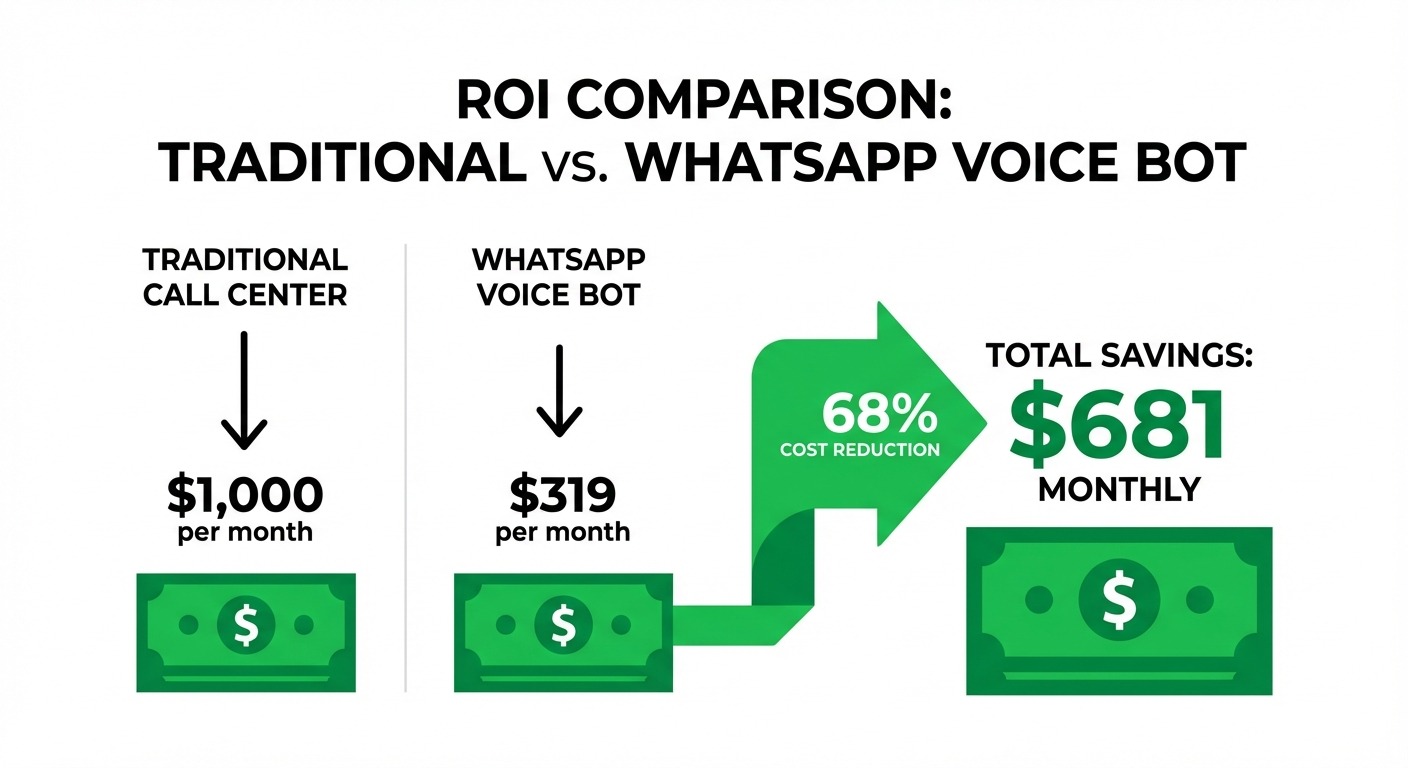
Scenario: E-commerce business receiving 500 customer calls per month
Traditional call center costs:
-
- 500 calls × 8 minutes average = 4,000 minutes
- Agent cost: ~$15/hour = $0.25/minute
- Total: 4,000 × $0.25 = $1,000/month
With WhatsApp calling chatbot:
-
- Bot handles 70% of calls automatically (350 calls)
- Remaining 30% escalated to agents (150 calls)
- ChatMaxima: $19/mo
- WhatsApp API: $0 (under 1,000 conversations/mo)
- Agent time: 150 calls × 8 min × $0.25 = $300/mo
- Total: $19 + $300 = $319/month
Savings: $681/month ($8,172/year)
And that’s conservative—many businesses see 80-90% automation rates after optimization.
WhatsApp Calling Chatbot Use Cases by Industry
Not sure how your industry can use voice bots? Here are proven examples:
E-commerce and Retail
-
- Order status updates via voice
- Product availability checks
- Return and exchange processing
- Store locations and hours
- Real example: Reserva (fashion) achieved 7X ROI using WhatsApp automation
Real Estate
-
- Property availability inquiries
- Schedule showing appointments
- Mortgage calculator assistance
- Document status updates
- Real example: Housing.com saw 1.8x conversion increase with WhatsApp engagement
Healthcare and Wellness
-
- Appointment scheduling and reminders
- Prescription refill requests
- Basic symptom triage (with disclaimers)
- Insurance verification
Banking and Finance
-
- Balance inquiries
- Transaction alerts
- Card activation and blocking
- Branch location finder
Travel and Hospitality
-
- Booking confirmations
- Check-in/check-out assistance
- Room service orders
- Local recommendations
Automotive
-
- Service appointment booking
- Vehicle inquiry handling
- Test drive scheduling
- Real example: Cars24 automated car discovery and bookings via WhatsApp
Logistics and Delivery
-
- Package tracking
- Delivery scheduling
- Address corrections
- Real example: Aramex reduced contact center load significantly with WhatsApp voice
Handling Payments and Sensitive Information Safely
The bot can facilitate payments by generating secure payment links, but it should NEVER handle credit card numbers directly. For PCI-DSS compliance, always use payment gateway integrations (Stripe, PayPal, etc.) that keep financial data out of the conversation.
For sensitive information (SSN, medical records, etc.), implement human escalation and never store sensitive data in plain text. Configure your system instructions to recognize when sensitive data is requested and immediately offer to transfer to a secure channel or human agent.
ChatMaxima vs Competitors: Why We Win for SMBs
Let’s be honest about where ChatMaxima fits in the market:
ChatMaxima: Built for Small and Medium Businesses
Strengths:
-
- Transparent pricing (no “contact sales” nonsense)
- No-code setup (seriously, you can do it in 30 minutes)
- Flexible AI providers (not locked into one vendor)
- Flat monthly rate (no surprise bills)
- Great for 10-10,000 conversations/month sweet spot
Best for: Growing businesses, e-commerce stores, service providers, local businesses, startups
Gupshup and Infobip: Enterprise Giants
Strengths:
-
- Massive scale (millions of conversations)
- Deep enterprise integrations
- Dedicated account teams
Weaknesses:
-
- Pricing starts at $1,000+/month
- Requires sales calls and contracts
- Complex setup process
- Overkill for most SMBs
Best for: Fortune 500 companies, large call centers, government contracts
The Verdict
If you’re processing under 50,000 calls per month, ChatMaxima gives you 90% of enterprise functionality at 5% of the cost.
Check out our pricing page to see if we’re a fit, or explore our full list of integrations to see what else connects with ChatMaxima.
For more guides like this, visit our blog or check out ChatMaxima alternatives to compare platforms objectively.
Advanced Tips for Power Users
Use the Same Bot for Text and Voice
ChatMaxima bots can handle both text messages and voice calls through the same WhatsApp number. You’ll define logic for each modality in your chatbot flow. This creates a unified customer experience where conversations can seamlessly move between text and voice.
Implement Post-Call Surveys
After each call resolution, have your bot ask: “On a scale of 1 to 5, how would you rate this call?” This gives you quantifiable satisfaction data to track improvement over time.
Create Context-Aware Routing
Use ChatMaxima’s flow builder to route calls differently based on:
-
- Time of day (business hours vs after-hours)
- Customer history (first-time caller vs repeat customer)
- Issue type (billing vs technical support)
- Language preference
Set Up Proactive Outbound Calls
For high-value use cases like appointment reminders or order confirmations, you can configure your bot to initiate calls to customers. Just remember these count as “business-initiated” conversations (slightly higher WhatsApp API cost).
Monitor Performance Metrics That Matter
Beyond basic call volume, track:
-
- First-call resolution rate – What percentage of calls the bot handles without escalation
- Average handling time – How long calls typically last
- Top deflection topics – Which questions the bot answers most frequently (these used to burden your team)
- Escalation triggers – What causes customers to ask for humans (improvement opportunities)
Getting Started Today
You now have everything you need to launch an AI-powered voice bot on WhatsApp:
The technology: STT, LLM, TTS (or STS)
The platform: ChatMaxima’s no-code builder
The strategy: Best practices and optimization tips
The ROI: $8,000+ annual savings for a typical SMB
Your next steps:
-
- Sign up for ChatMaxima at our pricing page (free trial available)
- Follow this guide to set up your first voice bot
- Test with your team before going live
- Launch and start saving thousands on support costs
Need help? ChatMaxima’s support team can guide you through setup, or explore our integrations to connect your existing tools.
Want to see alternatives? Check out our objective comparison of chatbot platforms.
Looking for more guides? Visit our blog for tutorials on conversational AI, customer automation, and WhatsApp marketing.
The Bottom Line
WhatsApp calling chatbots aren’t the future—they’re available right now in 2026. With 2.78 billion users, 98% open rates, and proven ROI, there’s no reason to wait.
Your customers are already on WhatsApp. It’s time your business meets them there with intelligent voice support they’ll actually want to use, available 24 hours a day, 7 days a week.
Start building today.