I have been running OpenClaw as my primary AI agent for weeks now. It handles everything from drafting content and researching leads to writing code and generating reports. But as I leaned on it more heavily, I hit a wall that every power user eventually faces: context pollution.
When you run a single AI session for everything, your lead research bleeds into your blog drafts, your dev debugging pollutes your social media planning, and your daily reports get buried under layers of unrelated conversation. The solution turned out to be something Telegram already had built in: Topics.
Here is exactly how I set it up, why it works, and the trade-offs you should know about before doing it yourself.
What Are Telegram Topics and Why They Matter for OpenClaw
Telegram supergroups have a feature called Topics (sometimes called Forum Mode). When you enable it, every conversation thread becomes its own isolated channel within the same group. Think of it like Slack channels, but inside a single Telegram group.
The key insight for OpenClaw users: each Topic gets its own isolated AI session with a separate context window. That means your Leads topic has zero awareness of what is happening in your Content topic. No context bleed. No confusion. Clean, focused sessions every time.
This is fundamentally different from running everything through a single DM conversation where the agent accumulates context from every domain you throw at it.
The Setup: From Zero to Organized in 10 Minutes
Here is the exact setup I used. It took less than 10 minutes.
Step 1: Create a Telegram Supergroup
Open Telegram, create a new group, and convert it to a supergroup (this happens automatically when you enable certain features). Give it a name that makes sense for your workflow. I called mine “Operations.”
Step 2: Enable Topics
Go to Group Settings and toggle on Topics (Forum Mode). This transforms your flat group chat into a structured workspace with individual threads.
Step 3: Add OpenClaw as Admin
Add your OpenClaw bot to the group and grant it admin permissions. It needs message access to respond within individual topics.
Step 4: Create Your Topic Structure
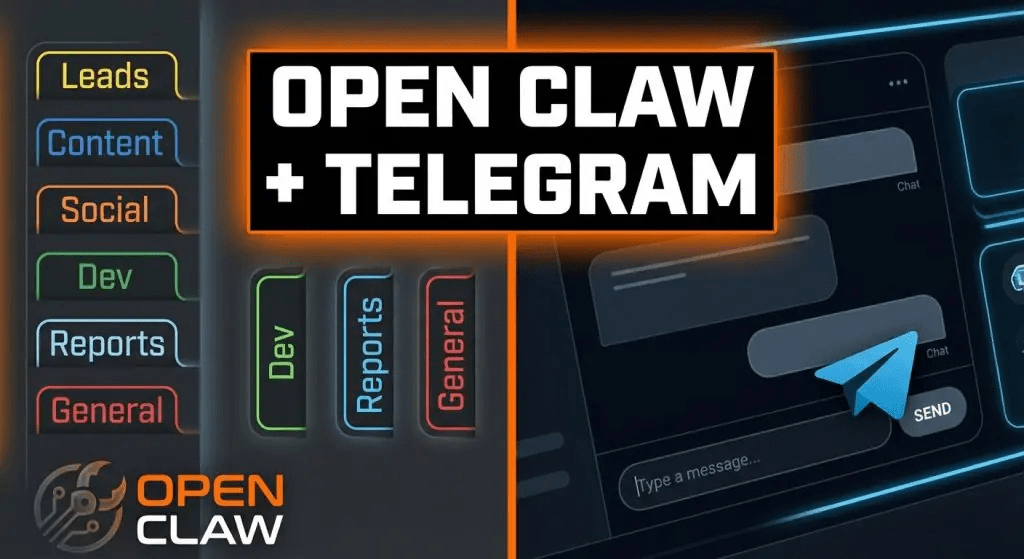
This is where the real thinking happens. I created six topics:
- Leads — for prospect research, lead scoring questions, and CRM-related tasks
- Content — for blog drafts, content calendars, and editorial planning
- Social — for tweet drafts, LinkedIn posts, and social media scheduling
- Dev — for code reviews, debugging help, and technical questions
- Reports — for daily summaries, analytics, and scheduled cron outputs
- General — a catch-all for anything that does not fit neatly elsewhere
You can create whatever structure fits your workflow. The point is each topic becomes a dedicated, context-isolated AI workspace.
How Isolated Sessions Change Everything
The isolation is the real superpower here. Let me explain what this means in practice.
When you message OpenClaw in the Leads topic, it starts a fresh session scoped entirely to that thread. It remembers what you discussed about leads within that topic, but it has zero knowledge of what you asked in the Dev or Content topics.
This gives you three major advantages:
Focused context windows. Each session only contains relevant information. When you are deep in a lead research conversation, the AI is not wasting tokens or attention on your latest blog draft or code review. The signal-to-noise ratio is dramatically better.
Privacy layering. Your DM with OpenClaw maintains full memory and long-term context. Group topics are isolated by design. This means you can share a group with team members without exposing your private DM history. Sensitive conversations stay in DMs. Categorized, shareable work happens in topics.
Cron output routing. This is one of my favorite features. You can configure OpenClaw cron jobs to deliver their output to specific topics. My daily lead summary goes to the Leads topic. My content calendar reminders go to Content. My server health checks go to Dev. Everything lands exactly where it belongs, and you can review each domain independently.
The DM + Topics Strategy: A Practical Framework
After running this setup for a while, I have settled on a clear division of labor between my DM and group topics.
Use your DM for:
- Complex, multi-step workflows that require deep context
- Sensitive or private tasks
- Tasks that benefit from long-term memory across sessions
- Anything that requires the agent to remember your preferences and past decisions
Use Topics for:
- Quick, categorized requests (“Draft a tweet about our new feature”)
- Receiving cron job outputs in the right place
- Team-visible work where colleagues can see AI outputs
- Domain-specific conversations that benefit from focused context
This two-tier approach gives you the best of both worlds. Your DM is your private power session with full memory. Your topics are lean, focused workspaces that stay clean and organized.
The Token Trade-Off: What You Need to Know
Let me be honest about the cost side of this setup. More active topics means more token consumption. Each topic maintains its own session, which means each one consumes tokens independently.
But here is the counterpoint that makes it worth it: each individual session is leaner and more focused. A single mega-session that handles leads, content, dev, social, and reports accumulates a massive context window full of noise. That bloated context actually wastes tokens on irrelevant information and degrades response quality.
With isolated topics, each session carries only the context it needs. You get better responses with less noise, even if you are running more sessions in parallel.
My practical advice: start with 3-4 topics for your most common workflows. Add more only when you genuinely need them. Do not create a topic for something you do once a month. The General topic handles those edge cases just fine.
Making It Team-Ready
One of the biggest advantages of this setup is how naturally it scales to teams. Since topics live inside a Telegram group, you can add team members who can:
- See AI outputs in real-time without accessing your private DM
- Contribute to topic conversations (the AI responds to anyone in the group)
- Review cron outputs relevant to their domain
- Use the AI for their own categorized requests
This turns OpenClaw from a personal assistant into a team-accessible AI workspace with built-in organization. No extra tooling required. No dashboards to build. Just Telegram and Topics.
For teams using ChatMaxima alongside OpenClaw, this creates a clean separation: ChatMaxima handles your customer-facing conversations across WhatsApp, Telegram, and other channels, while your OpenClaw Topics group handles internal AI-powered workflows.
Tips for Getting the Most Out of This Setup
After running this configuration daily, here are the patterns that work best:
Name your topics clearly. “Leads” is better than “Sales stuff.” Clear names help both you and the AI stay on track.
Pin instructions in each topic. Telegram lets you pin messages. Pin a brief context message at the top of each topic explaining what it is for. This helps team members and serves as a reference.
Route cron jobs deliberately. Do not dump all automated outputs into General. Take the time to route each cron job to its relevant topic. The organizational payoff is significant.
Review and prune periodically. If a topic goes unused for weeks, consider merging it into another or removing it. Dead topics add cognitive overhead without value.
Keep sensitive work in DMs. Topics are visible to all group members. Anything confidential, strategic, or personal should stay in your private DM session where full memory and privacy are maintained.
What This Looks Like Day-to-Day
Here is a typical morning with this setup:
I open Telegram and check the Reports topic. My overnight cron jobs have delivered a lead summary and a social media performance snapshot. I scan both in 30 seconds.
I hop into Content and ask OpenClaw to outline a blog post based on a trend I spotted. The session is clean and focused because it only knows about content-related conversations.
I switch to Leads and ask it to research a prospect. Again, zero context pollution from the content work I just did.
Later, a developer on my team checks the Dev topic where OpenClaw has flagged a dependency update from a scheduled check. They respond directly in the topic, and the AI helps them through the resolution.
All of this happens in one Telegram group. No app switching. No context management. No session confusion.
Getting Started
If you are already running OpenClaw on Telegram, this is a 10-minute upgrade that fundamentally changes how you work with your AI agent. The combination of Telegram Topics and OpenClaw’s session isolation creates an organized, scalable, team-ready workflow that keeps every domain clean and focused.
The setup is simple:
- Create a supergroup with Topics enabled
- Add your OpenClaw bot as admin
- Create topics that match your workflow domains
- Route your cron outputs to the right topics
- Use DMs for deep work, topics for categorized tasks
For more details on configuring OpenClaw with Telegram, check the OpenClaw documentation. And if you are looking to extend your customer-facing automation alongside this internal setup, ChatMaxima’s Telegram integration handles that side of the equation.
The best productivity systems are the ones you actually use. Telegram is already on your phone. Topics are already built in. OpenClaw already supports session isolation per topic. You just have to connect the pieces.