
Not every chatbot should run 24/7. Some should only take over when your live agents clock out. Others should handle the morning rush while your team catches up on tickets. And some should go completely silent on weekends because a human team covers those shifts.
The problem is that most chatbot platforms treat scheduling as an afterthought – if they offer it at all. You either run the bot all the time or turn it off manually. There is no middle ground, no timezone awareness, and no way to create split schedules for complex team arrangements.
ChatMaxima’s Bot Working Hours gives you granular control over exactly when your chatbot is active. Set specific days, define time slots (up to five per day), select your business timezone, and let the system handle the rest. When the schedule says the bot is off, it stays completely silent – no interference with your live agents.
This matters more than most teams realize. Research shows that 35% of customer inquiries arrive outside standard business hours, and businesses that fail to respond to those messages lose leads at an alarming rate. An after-hours chatbot that collects customer details and queues conversations for the next morning can be the difference between a captured lead and a lost one.
Why Chatbot Scheduling Is a Business Decision, Not a Technical One
The decision of when your bot runs is fundamentally about your customer experience strategy, not about software configuration. Get it wrong and you create friction – a bot that interrupts conversations your agents are already handling, or silence during the hours when customers most need help.
Consider the numbers. 67% of customer calls occur outside traditional 9-5 business hours. When those after-hours inquiries go unanswered, the consequences are measurable: 85% of callers will not leave a voicemail, and 78% will contact a competitor if they cannot reach someone immediately. For small businesses, this translates to an estimated 23 missed calls per week outside operating hours.
The financial impact is significant. Businesses that respond to leads within five minutes are nine times more likely to convert them. A one-minute response time can increase conversions by up to 391%. Every minute of silence outside business hours is a minute where potential customers are deciding to go elsewhere.
An after-hours chatbot changes this equation entirely. It responds instantly regardless of the time, collects customer information, answers common questions from your knowledge base, and queues complex issues for your team to handle the next morning. Your agents arrive to a prioritized list of conversations with full context instead of a pile of missed messages.
But here is the critical point: the bot should not run during hours when your live agents are available. A chatbot that jumps into conversations your human team is actively managing creates confusion, duplicate responses, and a disjointed customer experience. Scheduling ensures the bot knows when to work and when to stay out of the way.
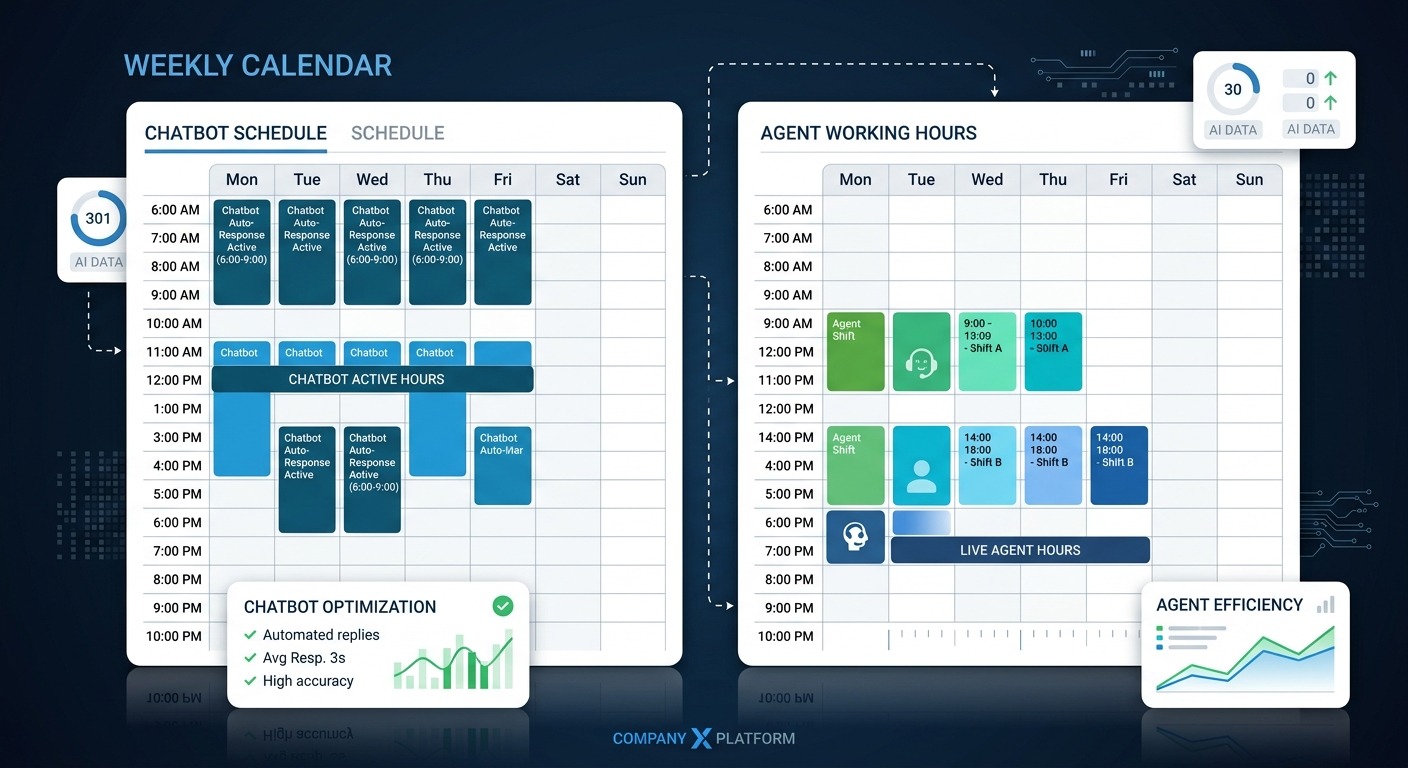
How Bot Working Hours Works in ChatMaxima
Bot Working Hours is configured directly in the Starting Step (trigger node) of your chatbot flow in the ChatMaxima Studio. This means the schedule is tied to the bot’s trigger – when a customer message arrives, the system checks the schedule before deciding whether to activate the bot.
Enabling the Schedule
Open your chatbot in the Studio, double-click the Starting Step node, and look for the Bot Working Hours toggle. Switch it from No to Yes. This reveals the timezone selector and the weekly schedule table.
Setting Your Timezone
Choose the timezone that matches your business location from the dropdown. All start and end times are interpreted in this timezone, and the system handles daylight saving and UTC conversions automatically on the backend.
Getting the timezone right is critical. If your business operates in New York, select America/New_York so that “9:00 AM” means 9:00 AM Eastern regardless of where your customers are located. A wrong timezone setting is the most common cause of bots responding at unexpected times.
Configuring the Weekly Schedule
The schedule table shows all seven days of the week. Each day has four controls:
Toggle switch – Turn the day on or off. When off, the bot will not respond on that day at all, regardless of any time slots configured.
FROM time – The time the bot starts responding on that day.
TO time – The time the bot stops responding on that day.
Add button (+) – Add additional time slots for the same day, up to five per day. This is essential for split schedules where your team has coverage gaps at specific times.
There is also a Copy button that lets you duplicate one day’s configuration across other days. Set up Monday, copy it to Tuesday through Friday, and you have a weekday schedule in seconds.
Saving the Configuration
Click Submit to save the schedule to your trigger node. The node preview on the canvas shows a compact summary of your configured hours so you can verify the setup at a glance. Then publish the bot using Save Changes in the top bar to push the schedule live.
Four Scheduling Patterns That Cover Most Use Cases
Most teams fall into one of four scheduling patterns. Here is how to configure each one.
Pattern 1: After-Hours Bot (Most Common)
Your live agents work 9 AM to 5 PM. You want the chatbot to take over when they leave and hand back when they return.
- Monday through Friday: 5:00 PM to 9:00 AM (bot active during off-hours)
- Saturday and Sunday: 12:00 AM to 11:59 PM (bot active all day)
This is the most popular configuration across ChatMaxima customers. The bot greets after-hours customers, collects their details, answers FAQs from the knowledge base, and queues conversations for the team to pick up the next morning. Agents arrive to a clean list of pre-qualified conversations instead of unanswered messages scattered across channels.
Pattern 2: Weekend-Only Bot
Your live agents handle all weekday conversations. The bot only covers weekends when no one is in the office.
- Monday through Friday: Off
- Saturday and Sunday: 12:00 AM to 11:59 PM (bot active all day)
This works well for businesses with dedicated weekday support staff but no weekend coverage. The bot ensures customers who reach out on Saturday or Sunday get an immediate response instead of waiting until Monday.
Pattern 3: Split Schedule (Coverage Gaps)
Your agents work 9 AM to 6 PM, but you also have a part-time evening team from 8 PM to 11 PM. The bot only needs to cover the gaps between shifts.
- Slot 1: 11:00 PM to 9:00 AM (overnight gap)
- Slot 2: 6:00 PM to 8:00 PM (evening gap between shifts)
Click the + button on any day to create the second slot. The bot stays silent during all agent-covered hours and only activates during the specific windows where no human is available.
Pattern 4: Business-Hours Bot
Some teams prefer the opposite approach – the bot runs during business hours to handle FAQs, route conversations to the right department, and qualify leads. After hours, messages go to the inbox for agents to handle the next day.
- Monday through Friday: 9:00 AM to 5:00 PM (bot active during business hours)
- Saturday and Sunday: Off
This works for teams that use the chatbot as a first-line filter during busy hours. The bot handles the repetitive questions (“What are your pricing plans?” “How do I reset my password?”) while agents focus on complex conversations that need human judgment.
What Happens When the Bot Is Off
When a customer sends a message outside the bot’s configured active hours, the bot does not trigger at all. The message is still received and stored in your ChatMaxima inbox, but no automated flow runs.
This is intentional and important. For the after-hours bot pattern, this means your live agents handle conversations during office hours without the bot interfering. There is no risk of the bot jumping into a conversation an agent is already managing. When agents leave for the day, the bot activates automatically based on the schedule.
You can also run two separate bots with different trigger configurations – one for business hours and one for after-hours – each with its own flow, tone, and behavior. The business-hours bot might focus on routing and qualification. The after-hours bot might focus on collecting contact information and setting expectations for response times.
For any windows not covered by either bot, you can configure a fallback greeting at the channel level so customers always receive at least an acknowledgment that their message was received.
Built-In Safeguards That Prevent Scheduling Mistakes
Scheduling errors can be costly. A bot that accidentally runs during business hours can confuse customers who are already talking to a human agent. A bot with overlapping time slots can trigger unexpected behavior. ChatMaxima’s validation system prevents the most common mistakes before they happen.
End time must be after start time. You cannot set a slot where the TO time is earlier than or equal to the FROM time. The system blocks the configuration and shows an error.
Overlap detection. If two time slots on the same day overlap – for example, 9:00 AM to 2:00 PM and 12:00 PM to 5:00 PM – the system flags the conflict and prevents submission. This eliminates the risk of double-triggering during overlapping windows.
Maximum five slots per day. Each day supports up to five separate time windows. This is more than enough for even the most complex shift arrangements while preventing overly complicated configurations that become impossible to maintain.
Best Practices for Chatbot Scheduling
Always verify your timezone first. This is the single most important step. A timezone mismatch shifts all your hours and creates exactly the kind of problems scheduling is meant to solve. If your business is in IST (India Standard Time) but your timezone is set to UTC, your 9 AM start time is actually 2:30 PM IST.
Use the Copy feature aggressively. Configure Monday’s schedule, then copy it to the rest of the weekdays. Adjust individual days only where needed. This saves time and reduces the chance of inconsistent configurations across days.
Keep it simple when possible. A single time slot per day is easier to manage and less error-prone than multiple split windows. Only use split schedules when your team structure genuinely requires them.
Test after publishing. Send a test message during the bot’s configured active hours and verify it responds. Then send one outside the configured hours and verify silence. This two-minute check prevents embarrassing production issues.
Coordinate with your live agents. If your bot stops at 9 AM, make sure your team knows they are responsible for incoming messages from that point. If agents leave early on Fridays, adjust the bot schedule to activate earlier on that day. The schedule should mirror your actual team availability, not your official business hours.
Review the schedule quarterly. Team sizes change, shift patterns evolve, and seasonal demand fluctuates. A schedule that worked in January might need adjustment by April. Set a reminder to review your chatbot hours alongside any changes to your support team’s working patterns.
Troubleshooting Common Issues
Bot responds outside configured hours – The most common cause is a timezone mismatch. Verify your timezone setting matches your actual business location. Also confirm that you clicked Submit after making changes and then published the bot using Save Changes.
Bot does not respond during configured hours – Check three things: the Bot Working Hours toggle is set to Yes, the specific day is toggled On (not just configured with times), and the FROM/TO times actually cover the current time in your selected timezone.
Time slots show default values after reopening – This means changes were not saved. Always click Submit before closing the modal, then publish with Save Changes in the top bar to persist changes to the server.
The Business Case: After-Hours Chatbots Pay for Themselves
The ROI calculation for an after-hours chatbot is straightforward. Businesses using chatbots for after-hours coverage report capturing 30-50% more leads compared to leaving inquiries unanswered until the next business day. The cost per chatbot interaction averages $0.50 compared to $6.00 for a human agent interaction.
For every $1 invested in AI customer service, companies see an average return of $3.50, with top performers achieving up to 8x returns. Conversational AI is projected to reduce contact center labor costs by $80 billion by 2026.
The math works at any scale. A small business capturing just five additional leads per week through an after-hours chatbot – leads that would have otherwise gone to a competitor – can generate thousands in additional annual revenue. And with ChatMaxima plans starting at $19 per month, the tool cost is recovered from the first converted lead.
Getting Started with Bot Working Hours
Bot Working Hours is available on all ChatMaxima plans. The configuration takes under five minutes:
- Open your chatbot in the Studio
- Double-click the Starting Step node
- Toggle Bot Working Hours to Yes
- Select your timezone
- Configure your daily schedule
- Click Submit, then Save Changes to publish
For teams managing chatbots across multiple channels – WhatsApp, Instagram, Facebook Messenger, Telegram, and web chat – the schedule applies to the bot’s trigger regardless of which channel the message arrives from. A single schedule controls all channels, keeping the configuration simple and consistent.
Check the full list of supported channels and integrations to see where your after-hours chatbot can operate. For teams evaluating chatbot platforms, the ChatMaxima alternatives page compares scheduling capabilities, pricing, and channel support across Intercom, Tidio, Crisp, and other platforms.
Your customers are reaching out at all hours. The question is whether someone – or something – is there to answer. With Bot Working Hours, you control exactly when that answer comes from your chatbot and when it comes from your team. No overlaps, no gaps, no missed opportunities.