
Welcome Back! Login to ChatMaxima.
Enter your email and password below to sign into your account
First time here?
Create Account
Forgot Password ?
Reset Password
A Flex Message is a card you lay out yourself, with an image, text and buttons. Design it in LINE's Flex Message Simulator, paste the JSON into ChatMaxima, and your LINE Official Account sends it from a bot flow.
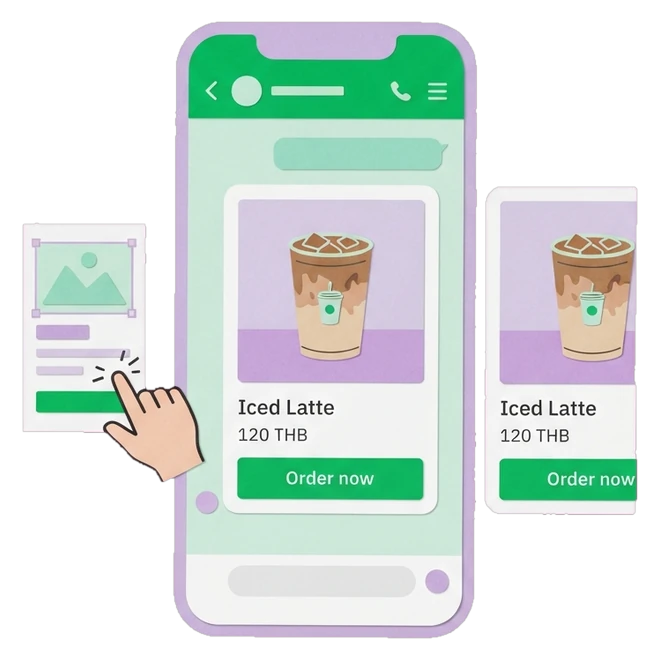
A Flex Message is a LINE message with a layout you control. The unit is a bubble: one card made of up to four blocks, always stacked in the same order. Put several bubbles side by side and you have a carousel that the customer swipes through.
A short subject line at the top.
The main image: a product, a dish or a map.
The main message: titles, prices and dates.
Buttons that open a link or send a text back.
Quick replies are tap answers under a text message, gone once one is tapped. A Flex Message stays in the chat as a card the customer can scroll back to.
| Flex Message bubble | Flex Message carousel | Text with quick replies | |
|---|---|---|---|
| What the customer sees | One card with image, text and buttons | Several cards to swipe sideways | Plain text with tap answers under it |
| Best for | One thing: a confirmation, a summary, one product | A choice between similar things: products, dishes | A quick question: yes or no, pick a topic |
| Buttons | Stay on the card | Stay on each card | Up to 13, labels up to 20 characters, shown once |
| How you build it in ChatMaxima | LINE Flex Message block | LINE Flex Message block | Buttons on a message block |
| On other channels | Alternative text | Alternative text | That channel's own buttons |
Quick replies and the rest of the flow builder are covered in the LINE chatbot guide.
You design the card in LINE's own tool and ChatMaxima sends it. Connect your LINE Official Account first (see the LINE Messaging API guide).
Go to LINE's Flex Message Simulator and start from a blank bubble.
Add the header, hero image, body text and footer buttons you need, and watch the preview.
Click View as JSON and copy everything. It starts with the type bubble or carousel.
In ChatMaxima Studio, place the LINE Flex Message block where the card should appear and paste the JSON into it.
Say what the card is, such as "Your order summary". LINE shows it in the chat list and the notification, and ChatMaxima saves it in the inbox as the message.
Put variables such as {{name}} inside text values, save, then message your LINE account and check the card on a phone.
One bubble with a hero image, two lines of text and a link button. Paste it into the Flex Message Simulator to see it, or into the LINE Flex Message block to send it.
{
  "type": "bubble",
  "hero": {
    "type": "image",
    "url": "https://example.com/latte.jpg",
    "size": "full", "aspectRatio": "20:13", "aspectMode": "cover"
  },
  "body": {
    "type": "box", "layout": "vertical",
    "contents": [
      { "type": "text", "text": "Iced Latte", "weight": "bold", "size": "xl" },
      { "type": "text", "text": "Ready for {{name}} in 10 minutes", "wrap": true }
    ]
  },
  "footer": {
    "type": "box", "layout": "vertical",
    "contents": [
      { "type": "button", "style": "primary",
        "action": { "type": "uri", "label": "Order now", "uri": "https://example.com/order" } }
    ]
  }
}A photo in the hero, name and price in the body, and a button to the product page. Put several in a carousel.
Items, quantities and total filled in from variables, with a button to the tracking page.
Service, date, time and address on one card, with a button that opens the map.
One bubble per dish in a carousel. A message button such as "Order this" sends the choice into the chat.
A header ("Tomorrow at 10:00") and two footer buttons: confirm, or ask for another time.

When a message in your flow has a link button, ChatMaxima turns it into a Flex Message card for LINE automatically.
Use the LINE Flex Message block when you want your own layout.
Everything ChatMaxima adds to a LINE account.
Build the flow that decides when each card is sent.
A tap menu at the bottom of the chat.
One message to many LINE contacts.
Connect your account before the first card.
Connect your LINE Official Account, paste a card from the Flex Message Simulator and see it arrive on your phone. 7-day free trial, no credit card.
Start Your Free TrialNo. LINE's Flex Message Simulator is a visual editor that writes the JSON for you. In ChatMaxima you paste that JSON into the LINE Flex Message block, so there is no API call to program. You can try it in the 7-day free trial.
Yes. Variables work inside the text values of the JSON and in the alternative text, for example {{name}} or an order number your flow collected. Avoid values containing a double quote, which would break the JSON.
The block accepts one container that starts with the type bubble or carousel, exactly as the Simulator shows it under View as JSON. If you copied a full API message that starts with the type flex, paste only its contents part.
Like any LINE message: a card sent as a reply shortly after the customer's message does not count; one your business sends first does. See LINE Official Account pricing for how the quota works.
LINE shows it in the chat list and the notification, where a card cannot appear. ChatMaxima also saves it in the inbox as the message and sends it as a normal message when the flow runs on another channel. It is required, up to 400 characters.
LINE allows up to 12 bubbles in one carousel. In practice three to six cards work better, because customers rarely swipe to the end.
A link button opens a web page. A button with a message action sends its text into the chat as if the customer typed it. The LINE Flex Message block does not wait for an answer, so place a question block after it when the flow should react to the tap.
Not today. A LINE broadcast in ChatMaxima sends a free-text message. Flex Message cards go out from a bot flow through the LINE Flex Message block.