
Welcome Back! Login to ChatMaxima.
Enter your email and password below to sign into your account
First time here?
Create Account
Forgot Password ?
Reset Password
Draw the conversation on a canvas in ChatMaxima Studio, connect your LINE Official Account, and the LINE bot starts replying. No code, no server, and your team can step into any chat.
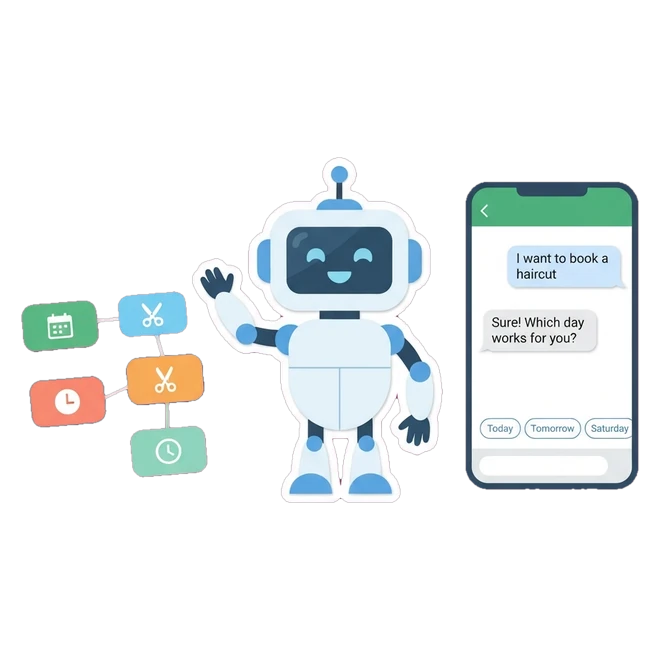
A LINE chatbot replies for your LINE Official Account. About 190 million people use LINE each month, and it is the leading messaging app in Japan, Thailand and Taiwan. Here is what happens on both sides of one chat.
| Moment in the chat | What the customer sees on LINE | What the flow does in ChatMaxima |
|---|---|---|
| The customer writes to your Official Account | Their own message in the LINE chat | LINE passes the message to ChatMaxima and the flow begins |
| The bot greets and offers choices | A short text with quick reply buttons | A text block followed by a buttons block |
| The customer taps a choice or types an answer | The next question, with no waiting | The answer is saved in a variable and a condition picks the branch |
| The customer asks something in their own words | A written answer based on your content | The MaxIA agent replies from your knowledge base |
| The question needs a person | A note that a team member is joining | The chat moves to the shared inbox with its full history |
Every LINE bot is made from the same six parts.
Each step of the chat is a block. Drag blocks onto the canvas and connect them to set the order.
Send text and media, or ask a question and wait for the answer before the flow moves on.
A buttons block shows on LINE as quick replies: up to 13 choices per message, with labels of up to 20 characters.
Store each answer in a named variable, reuse it in later messages, and keep it on the contact so nobody asks twice.
Send the chat down a different path depending on an answer, such as new or returning customer.
Call your own system mid-chat to look something up or pass details on, then use the result in the next message.
A welcome message, three choices and a handover make a good first bot.
Paste the channel access token and channel secret into ChatMaxima; the LINE Messaging API setup guide shows where to find them.
Start with an empty canvas for the chatbot.
Add a text block, then a buttons block with what people ask for most, such as Book, Order status and Talk to us.
For each choice, add the questions you need (name, date, order number) and store every answer in its own variable.
Branch on an answer with a condition, add the MaxIA agent for open questions, and end the paths that need a person with a handover.
Message the Official Account from your LINE app, walk through every branch and fix the wording.
Buttons cover the questions you expected. The AI agent and your team cover the rest.
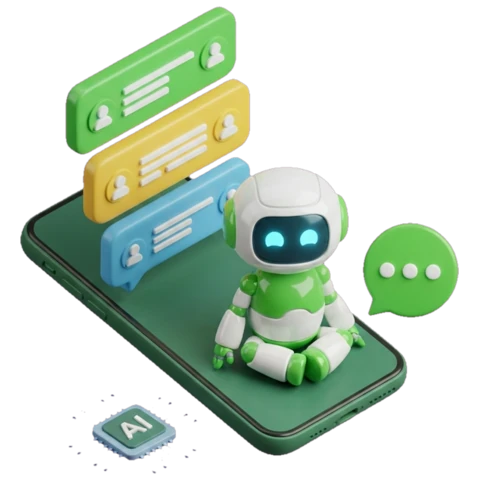
Add the MaxIA agent as a block in the flow. It reads what the customer wrote and answers from the knowledge base you gave it, so unplanned questions still get a reply. When it cannot help, it passes the chat to a person.

At a handover, the conversation lands in the shared inbox. The agent reads what was said and the details the bot collected, then answers in the same LINE chat. Chats can be assigned to a person or department, and answered from the iOS or Android app.
Each is a short flow built from the blocks above.
The bot asks which service, day and time with quick replies, saves the answers and hands the chat to the front desk to confirm.
The customer types an order number, an API block asks your shop system for the status, and the bot sends it back. If nothing is found, the chat goes to a person.
A few questions (what they need, when, how to reach them) are saved on the contact record, so sales pick up a qualified chat.
The MaxIA agent answers questions about hours, prices and returns from your knowledge base at any hour, and hands over unusual ones.
Part of our guide to ChatMaxima for LINE Official Account.
Connect the Official Account step by step.
LINE's built-in replies compared with a bot.
Send designed cards from a flow.
Put bot shortcuts under the chat.
Draw your first flow and test it from your own phone. The trial runs 7 days with no credit card.
Start Your Free TrialWhat people ask before building a bot on LINE.
No. In ChatMaxima Studio you drag blocks onto a canvas, type each message and connect the blocks. ChatMaxima handles the connection to LINE, so there is no server to run and no code to write.
Buttons appear on LINE as quick replies: up to 13 on one message, each with a label of up to 20 characters. With more options than that, split them over two steps.
You choose where a person takes over, for example after a booking request or when the AI agent cannot answer. The chat then appears in the shared inbox with its history, and an agent replies in the same LINE chat.
No. The chatbot answers one-to-one chats with your LINE Official Account. Group chats are not handled, and LINE Login and LIFF apps are not included.
A reply sent with LINE's reply token shortly after the customer's message does not count against your monthly quota. Messages your business starts do count. See LINE Official Account pricing for LINE's plans.
A scripted LINE bot follows the path you drew. A LINE AI chatbot reads what the customer typed and answers from your knowledge base. One flow can hold both.
Each answer is stored in a variable you name. Variables can be reused in later messages, checked by a condition and saved on the contact record. Managing those records is covered on the LINE CRM page.
Only if that customer has already messaged your LINE Official Account. A flow started by a schedule or a webhook can then write to that contact with the LINE Messaging block. To message many contacts at once, see LINE broadcast.
No reply usually means the Webhooks switch in LINE Official Account Manager is still off; see the LINE Messaging API guide. A double reply means LINE's own auto-response is still on, which the LINE auto reply page covers.