
Welcome Back! Login to ChatMaxima.
Enter your email and password below to sign into your account
First time here?
Create Account
Forgot Password ?
Reset Password
Build the LINE rich menu for your LINE Official Account in ChatMaxima. Pick a grid layout, upload one image, decide what each tap does, and choose the menu every customer sees.
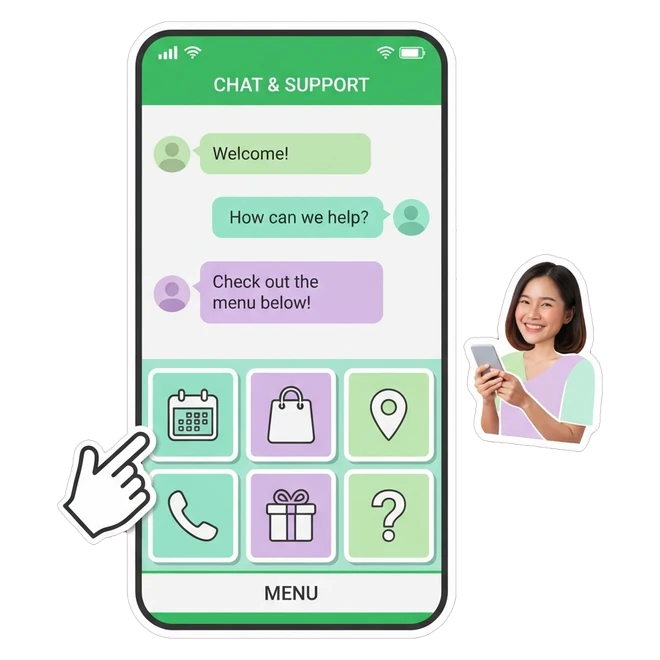
A LINE rich menu is the tappable menu that sits at the bottom of the chat with a LINE Official Account, where the keyboard would normally be. Customers see it the moment they open the chat, so it works like a home screen for your account: book, check an order, see prices, find the shop.
There are two menu heights. Large covers more of the chat and fits up to six areas; Compact is half as tall and leaves more room for the conversation.
| Layout | Rich menu size (image) | Tap areas you can choose | Suits |
|---|---|---|---|
| Large | 2500 x 1686 px | 6, 4, 2 or 1 | Accounts with four to six actions to offer |
| Compact | 2500 x 843 px | 3, 2 or 1 | Accounts with one to three main actions |
Have your image ready before you start.
Rich menus are managed per connected account. The LINE Messaging API setup guide covers the connection.
Start a new rich menu for that account. Pick Large with 6, 4, 2 or 1 areas, or Compact with 3, 2 or 1 areas.
Draw one picture with a block for each area: 2500 x 1686 px for Large, 2500 x 843 px for Compact. Export it as a JPEG or PNG of up to 1 MB.
Upload the file and type the menu bar label, up to 14 characters.
For each area choose send text and type the text, or choose open link and paste an https address.
Save the rich menu and make it the default. All customers of that LINE account now see it.
Open the chat with your Official Account in LINE and tap every area once.
Each area of the menu gets one of two actions.

The text you set is posted into the chat as if the customer had typed it. If it matches the keyword of a flow, that flow starts; otherwise it arrives in the shared inbox like any other message. Use a distinct phrase per area, such as "Book a table" or "Order status", and give the matching flow the same keyword. Building the flow itself is covered in the LINE chatbot guide.
The area opens an https address: your booking page, online store, map or a form.
Menus change with seasons and campaigns. This is how you keep them current.
Each connected LINE account has its own list of existing rich menus.
Pick the menu all customers see. Remove the default to show no rich menu.
LINE does not let a rich menu be edited. To change anything, create a new menu, set it as the default, and retire the old one.
Remove old menus, such as last season's campaign, to keep the list short.
Thumbs are not precise. If you have three things to offer, use three large areas, not six small ones.
Two or three words per area, in large type, with an icon. Long sentences turn unreadable on a phone screen.
People read from the top left first. Put the action customers ask for most there, such as booking or order status.
Connect your LINE account, upload the image and set the taps. The 7-day free trial needs no credit card.
Start Your Free Trial