
You built the WhatsApp template, you imported the contact list, you hit send, and the campaign stopped after 250 people. Nothing is broken. You hit your WhatsApp messaging limit, the cap Meta puts on how many customers a business can message first in a rolling 24-hour window.
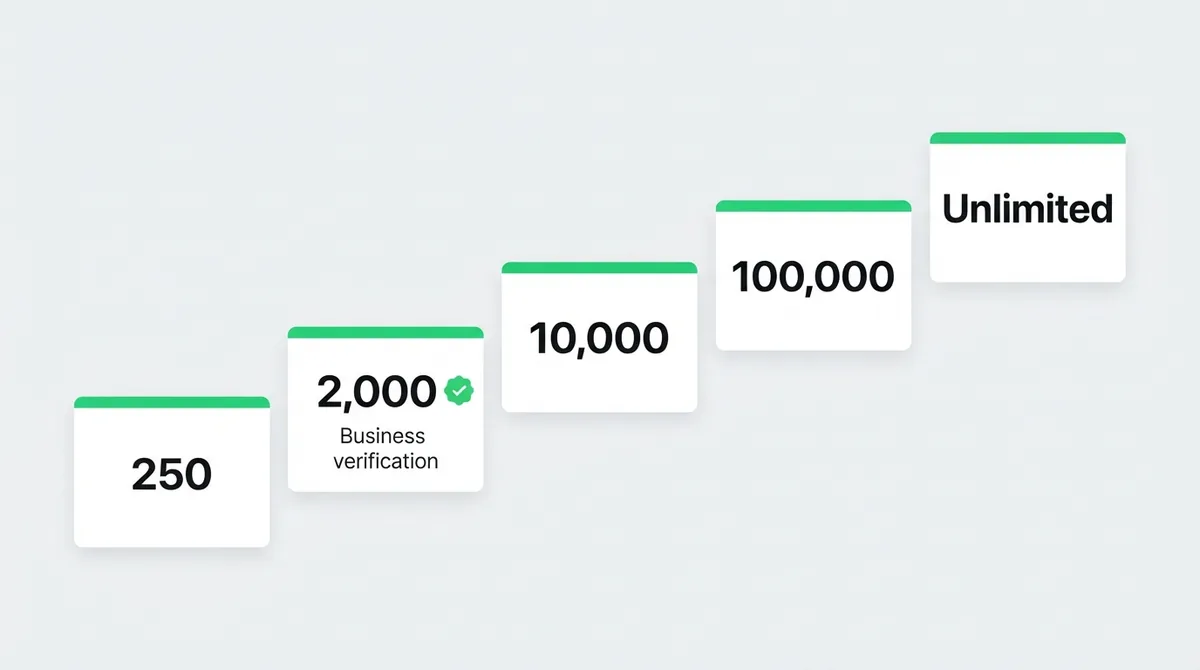
New business portfolios start at 250. The fastest way past it is Meta business verification, which unlocks the 2,000 tier and starts the automatic climb to 10,000, 100,000 and unlimited. Meta also changed how these limits work in October 2025, so a lot of the advice still floating around (the old 1,000 tier, per-number limits) is out of date.
This guide covers what the limit counts, every route from 250 to 2,000, a click-by-click walkthrough of Meta business verification, the reasons verification gets rejected, and how to grow past 2,000 without damaging your quality rating.
What the WhatsApp Messaging Limit Actually Counts
The name makes it sound like a cap on every message you send. It is narrower than that, and knowing exactly what counts lets you get more out of the tier you are on.
According to Meta’s messaging limits documentation, the limit caps the number of unique WhatsApp users you can message outside a customer service window in a moving 24-hour period. In practice:
- Only messages you start count. If a customer messages you first, a 24-hour customer service window opens and your replies in that window do not use up your limit.
- It counts unique people, not messages. Sending three templates to the same customer in a day uses one slot, not three.
- The window rolls. It does not reset at midnight. A slot you used at 3 PM today frees up at 3 PM tomorrow.
So a support team that mostly answers incoming chats can work happily at 250. The limit bites when you send broadcasts, abandoned-cart reminders, order updates to new buyers, appointment reminders or re-engagement campaigns to people who have not messaged you recently.
The October 2025 change: limits now sit at the business portfolio level
On October 8, 2025, Meta’s WhatsApp changelog announced two changes that still catch people out:
- Limits moved from the phone number to the business portfolio. Every phone number in one Meta business portfolio now shares a single allowance. If your support number and your marketing number sit in the same portfolio, together they can reach your limit and no more.
- The first step up is now 2,000, not 1,000. The old 1,000 tier is gone.
Portfolios that existed before the change kept the highest limit any of their numbers had. A new number added to a portfolio takes on the portfolio’s current limit right away, so a business already on 100,000 does not have to warm up a new number from scratch.
The Five WhatsApp Messaging Limit Tiers in 2026
| Tier | Unique customers per rolling 24 hours | How you reach it |
|---|---|---|
| Starting | 250 | Default for every new business portfolio |
| Tier 1 | 2,000 | Complete a scaling path (business verification is the most common) |
| Tier 2 | 10,000 | Automatic: high quality + use at least half of 2,000 in 7 days |
| Tier 3 | 100,000 | Automatic: high quality + use at least half of 10,000 in 7 days |
| Unlimited | No cap | Automatic: high quality + use at least half of 100,000 in 7 days |
The jump from 250 to 2,000 is the only step you have to ask for. Every step after it is automatic, as long as your messages stay high quality and you actually use the capacity you have.
Three Ways to Go From 250 to 2,000
Meta offers three scaling paths to the 2,000 tier. You only need to complete one.
- Verify your business yourself in Meta Business Suite. This is the route most businesses take, and the rest of this guide walks through it.
- Have your partner verify it. If a solution provider onboarded you to the WhatsApp Business Platform, that partner can complete verification for you, depending on how the account was set up.
- Prove volume without verifying. Send 2,000 delivered messages to unique numbers outside customer service windows within a moving 30-day period, using high-quality templates.
The third path sounds easy until you do the maths. At 250 unique customers a day, reaching 2,000 takes at least eight days of steady sending, and every one of those templates has to stay high quality. For most businesses, verification is faster and gives you more than the extra capacity.
Whichever path you pick, Meta reviews your message quality before approving the new limit. A completed path makes you eligible; it does not guarantee approval if your templates are getting blocked or reported.
What else verification unlocks
Verification is worth doing even if 250 a day covers you right now:
- More phone numbers. New portfolios can register only two business phone numbers. Meta raises that to 20 once your business is verified or reaches the 2,000 limit, according to Meta’s Cloud API phone number documentation.
- Your business name in chats. Meta’s own Increase limits panel pairs the 2,000 tier with showing your business name in chat with customers.
- Credibility with Meta’s review systems. Display name reviews and later capability requests tend to go more smoothly for a verified portfolio.
- A foundation for the green tick. Business verification is not the same as the green verified badge (Official Business Account or Meta Verified). Those are separate programs, but a verified portfolio is the starting point for them.
How to Complete Meta Business Verification: Step by Step
Before you start, spend ten minutes on preparation. Most rejections come from details that did not match, not from businesses that were not real.
Before you start: a prerequisites checklist
- Admin access. Only someone with full Admin control of the business portfolio can submit verification. Employee access is not enough.
- An eligible portfolio. Meta only shows the option when your portfolio is eligible. If the button is greyed out or missing, the usual fix is to create or connect a Meta app to the portfolio (any WhatsApp Business Platform setup through a provider usually covers this), or to ask the current admin to grant you full control.
- A live website on HTTPS that shows your business name and ideally the same address and phone number you will submit. A site that will not load or has no SSL certificate is a common reason for rejection.
- A domain email address such as accounts@yourcompany.com. Free mailbox addresses (Gmail, Outlook, Yahoo) generally cannot be used to confirm your connection.
- Legal documents whose name, address and phone number match exactly what you will type in the form.
A practical habit: open your main registration document before you start and copy the legal name, character for character, from it. “ABC Traders Pvt. Ltd.” and “ABC Traders Private Limited” can be enough for an automated check to flag a mismatch.
Step 1: Click Start verification
There are two ways in, and both lead to the same flow.
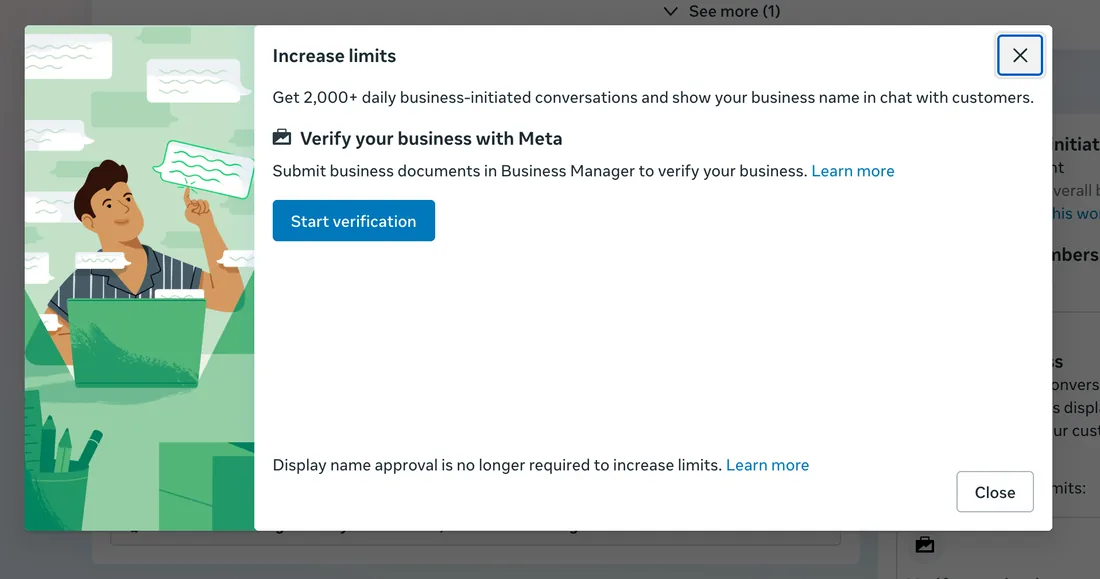
From WhatsApp Manager. If your portfolio is still on 250, WhatsApp Manager shows an Increase limits panel offering “2,000+ daily business-initiated conversations” and your business name shown in chats. Under Verify your business with Meta, click Start verification. Notice the line at the bottom: display name approval is no longer required to increase limits, so you do not need to wait on a display name review first.
From Meta Business Suite. Log in to Meta Business Suite, pick the right business portfolio from the switcher at the top left, go to Settings, and open Security Center (or Business info, depending on your layout). Click Start verification.
If you manage more than one portfolio, check twice that you are in the one your WhatsApp Business Account belongs to. Verifying the wrong portfolio is a surprisingly common way to lose a week.
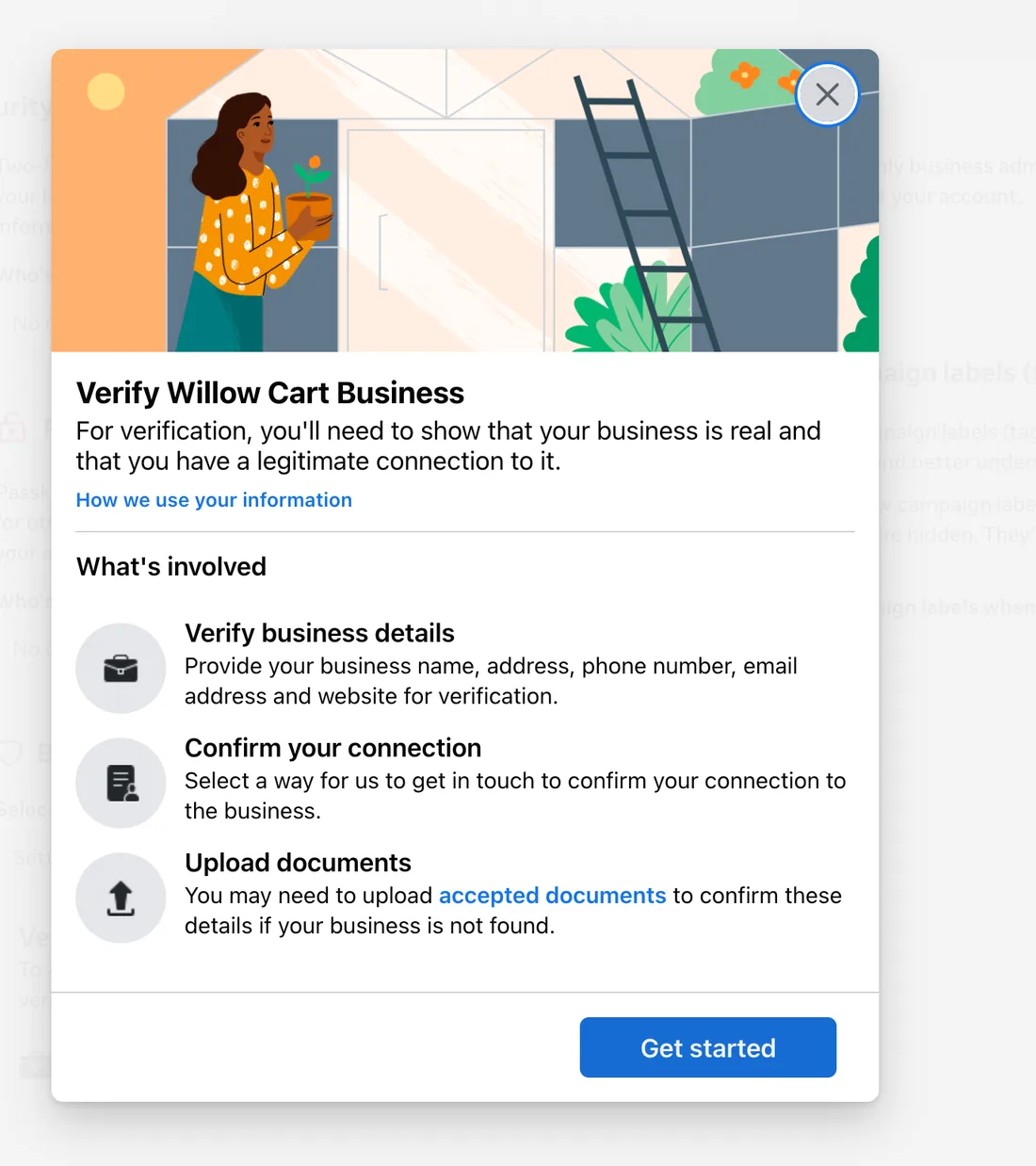
Meta then shows an overview titled Verify [your business name]. It lists the three parts of the process, which the rest of this guide follows in order: verify business details (name, address, phone number, email and website), confirm your connection, and upload documents if Meta cannot find your business in official records. Click Get started.
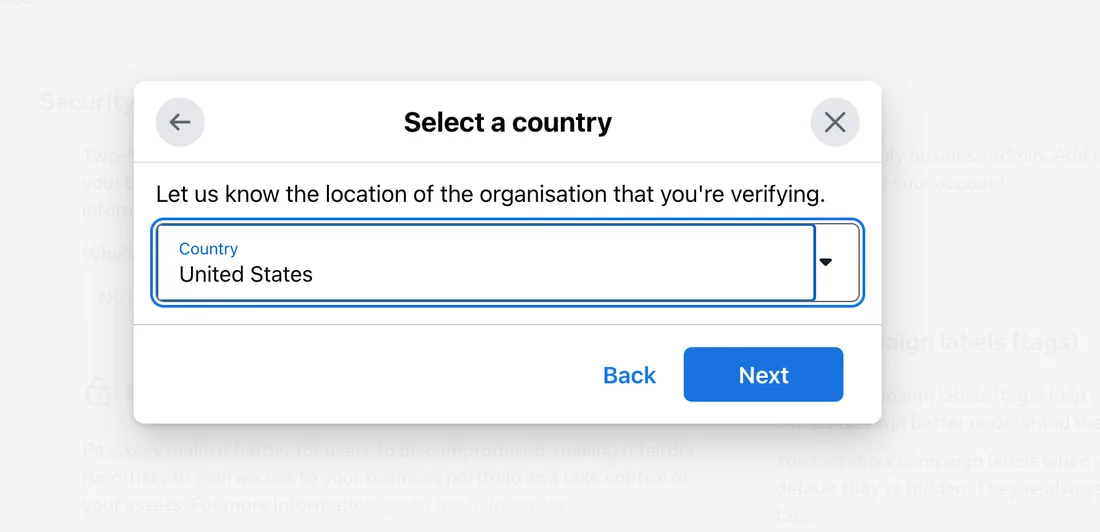
Step 2: Select your country
Choose the country where your organization is legally registered, not where your customers or your team are. Meta uses it to decide which official records to search and which documents it will accept. A company registered in India that sells to the UAE still picks India.
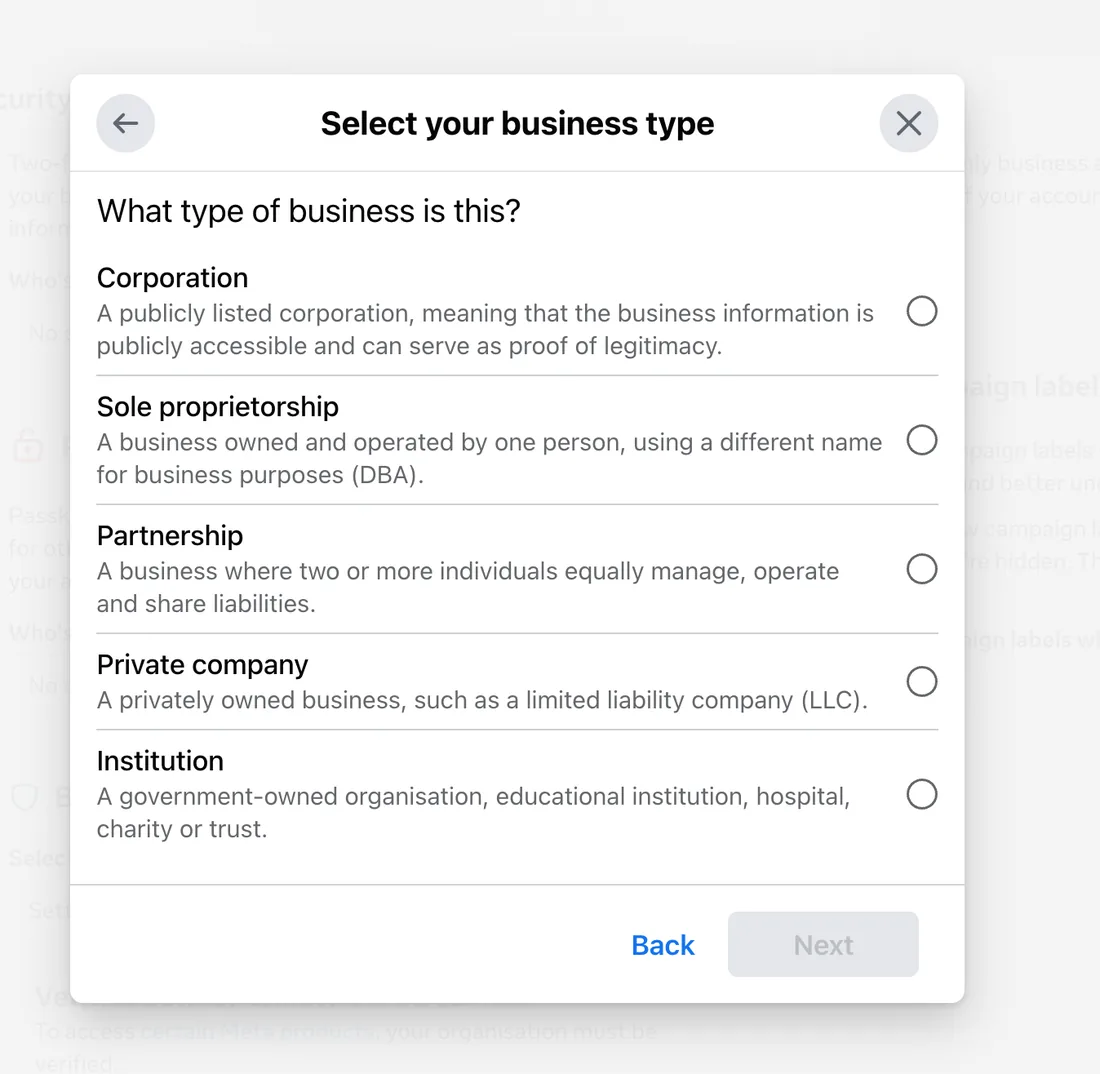
Step 3: Select your business type
Meta offers five options, and picking the wrong one is an easy way to send it searching the wrong records:
- Corporation: a publicly listed company whose information is public. Despite the name, this is not the right choice for most private limited companies.
- Sole proprietorship: a business owned and run by one person, usually trading under a different name.
- Partnership: two or more people who manage the business and share its liabilities.
- Private company: a privately owned business such as an LLC or a private limited company. Most small and mid-sized businesses belong here.
- Institution: a government body, school, college, hospital, charity or trust.
Sole proprietors can verify too. Plan to use documents such as a tax registration certificate, a business license, or a utility bill or bank statement in the business name.
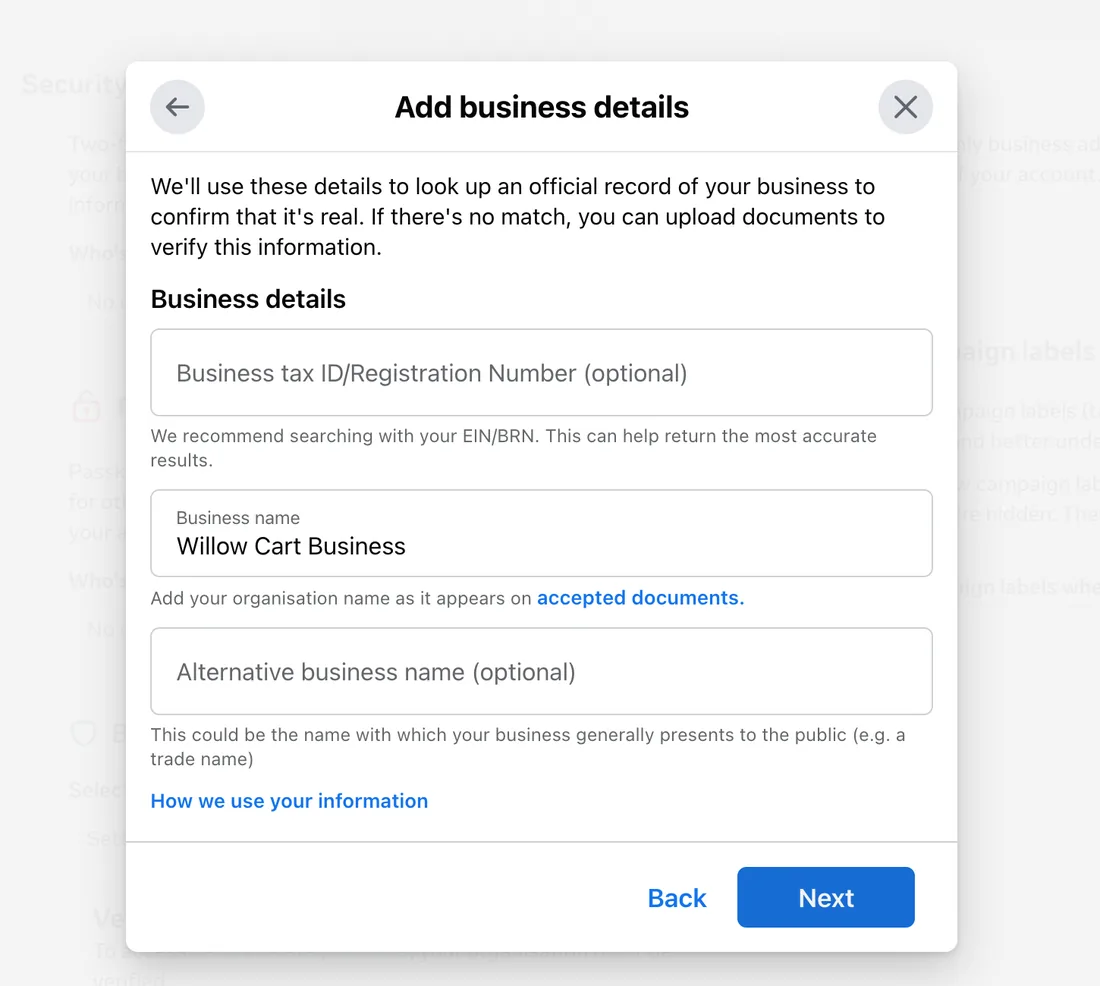
Step 4: Add your business details
This screen drives the search for an official record of your business, so precision here decides whether you get an instant match or a document upload.
- Business tax ID / Registration Number (optional): it is optional, but fill it in. Meta says searching by registration number returns the most accurate results. Use the identifier on your registration documents, for example an EIN in the United States, or a CIN or GSTIN in India.
- Business name: your organization name exactly as it appears on your accepted documents.
- Alternative business name (optional): the trade or brand name customers know you by, if it differs from the legal name.
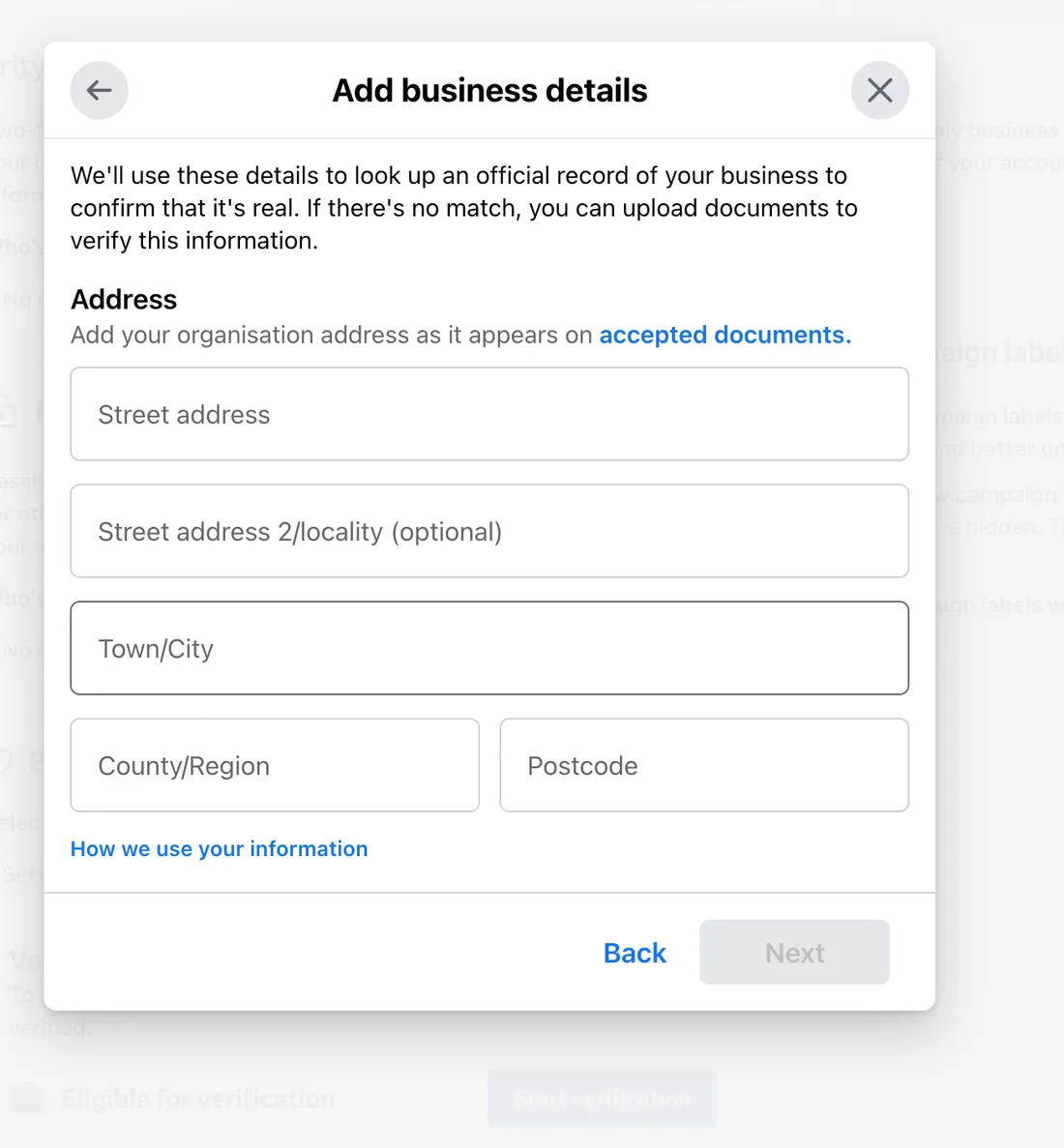
Step 5: Add your address and contact information
The next two screens continue Add business details, and Meta uses them in the same record search.
Address. Enter your organization’s address as it appears on your accepted documents: street address, an optional second line for the locality, town or city, county or region, and postcode. If your registration certificate shows a registered office and your team works from somewhere else, use the registered office. That is the address Meta will compare against.
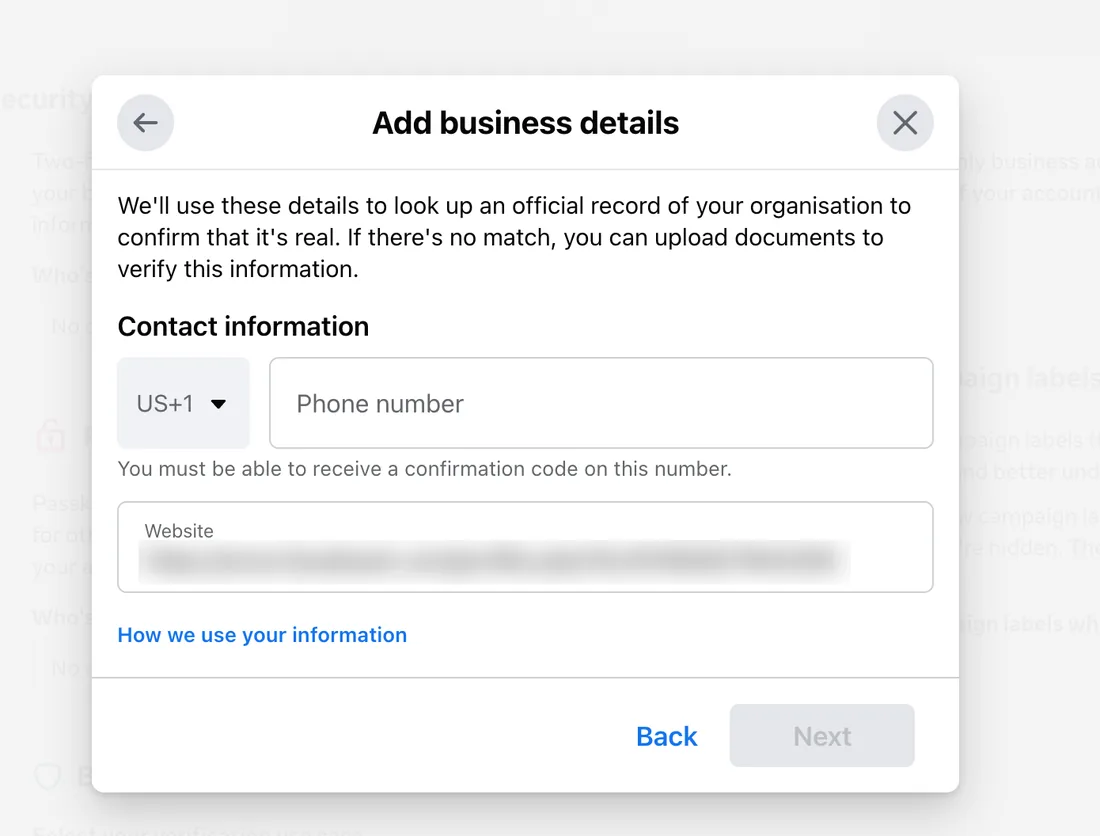
Contact information. Pick the country code, enter your business phone number, and confirm your website. Two things to check on this screen:
- The phone number. Meta states plainly that you must be able to receive a confirmation code on this number. It should also match the number on your official documents or public listing. A disconnected landline, a reception desk nobody answers, or a former employee’s mobile will stall you in Step 7.
- The website. Meta may pre-fill this field with your Facebook Page URL. Replace it with your own domain (for example https://www.yourcompany.com/). It gives the reviewer a site that shows your legal name and address, and it lines up with the domain email or domain verification you will use to confirm your connection.
Step 6: Match a public record or upload documents
Meta searches public and government records for your business.
If your business appears, select the matching record. This is the fastest path, and some businesses are verified within minutes.
If no record matches, choose My business isn’t listed (or None of these match). Meta then opens an Upload documents screen that repeats the name, address and phone number you entered and asks you to prove them. It accepts .jpg, .png and .pdf files.
The first check is Verify legal business name. Meta is explicit that the document must include the legal organisation name you entered and must not be expired. You may upload the same document more than once, so if one file shows your name, address and phone number together, it can cover every check.
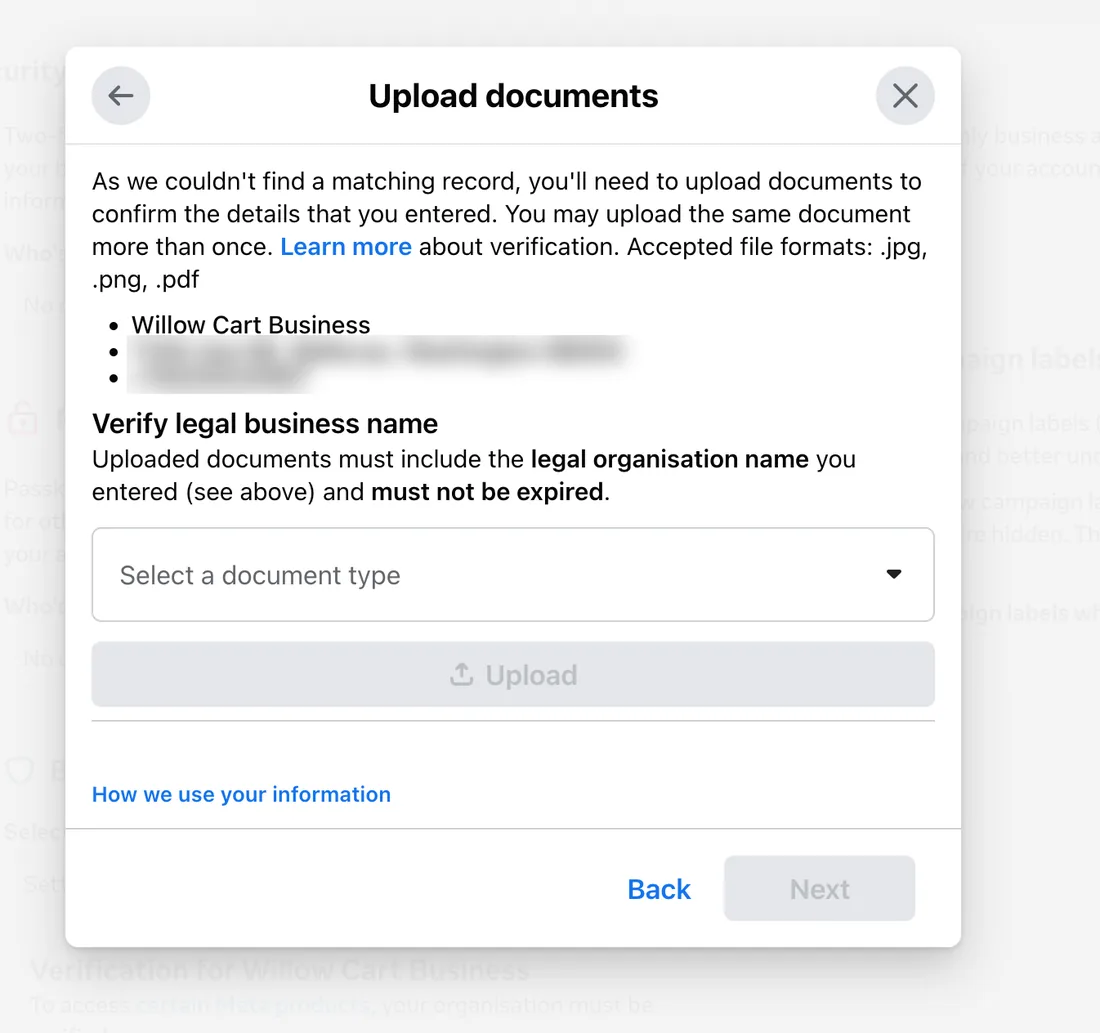
Open Select a document type and pick the document you have. The list depends on the country you chose in Step 2. For a business registered in the United States it includes:
- IRS 147c (EIN confirmation letter) and IRS SS-4 (EIN assignment letter), both marked Recommended
- Business bank statement
- Business registration or licence document
- Business tax document, issued by a government authority
- Certificate or articles of incorporation
- Doing Business As (DBA) documents, useful for sole proprietors trading under a different name
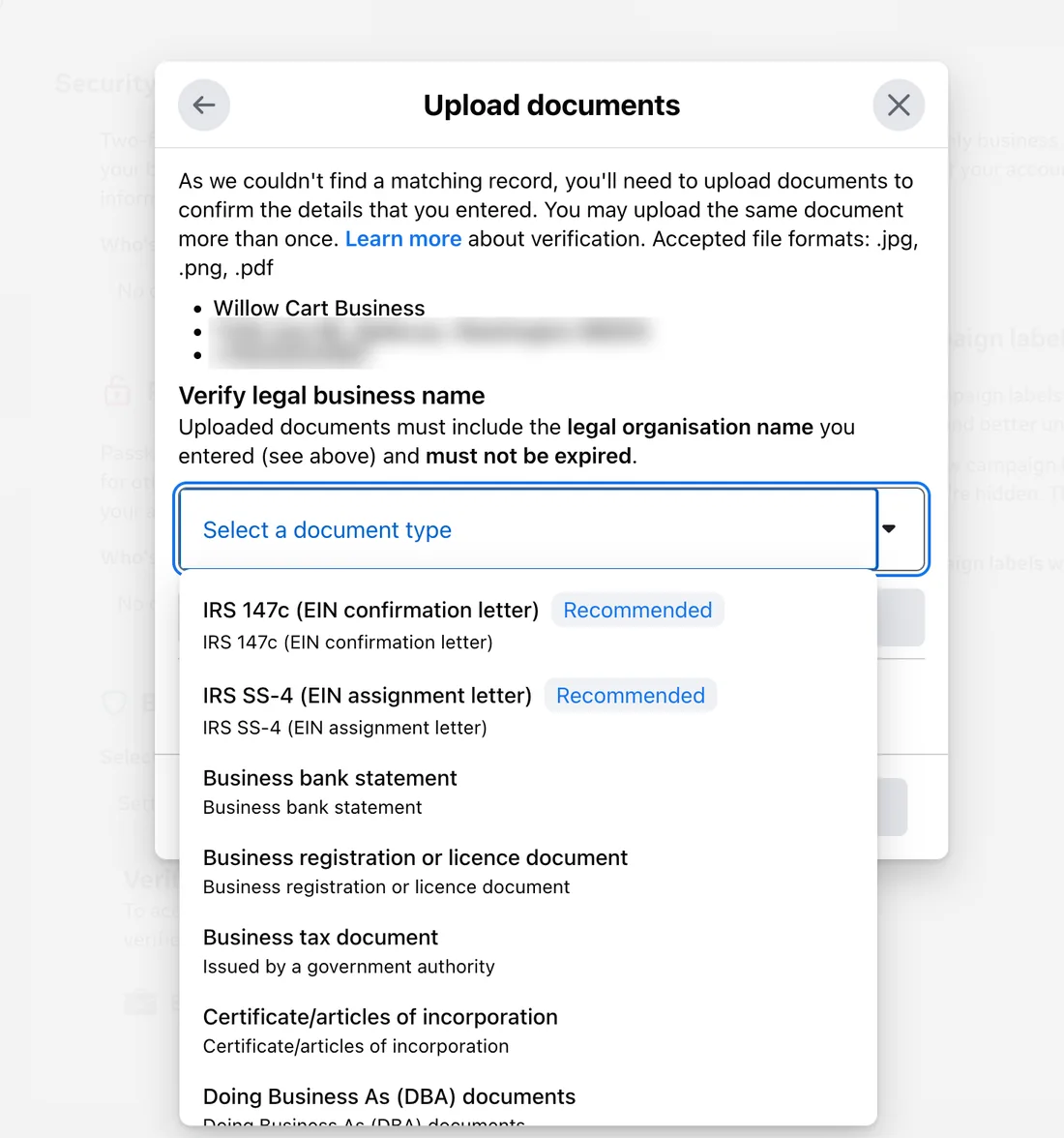
Other countries see their own equivalents, such as a GST registration certificate or certificate of incorporation in India, or a Companies House document in the United Kingdom. Whatever the country, use a document Meta marks Recommended when you have one.
For address and phone number, a utility bill, phone bill or business bank statement works, as long as it also shows the official business name. A utility bill does not prove the legal name on its own, so pair it with a registration or tax document. Self-prepared tax filings are not accepted.
Some guidelines that save resubmissions:
- Upload clear, full-color scans with all four corners visible. Cropped, blurry or edited files get rejected.
- Documents must be current and unexpired.
- A utility bill only proves address and phone number. It still has to show the legal business name, and it does not replace a registration document for proving the name.
- If a document is not in a language Meta supports, attach a certified translation.
Step 7: Confirm your connection to the business
Next, Meta needs proof that you personally represent this business. You choose one method:
- Email: a code sent to an address on your business domain
- Phone call or text message (SMS): a code sent to the business phone number
- WhatsApp message: a code sent to the business number on WhatsApp
- Domain verification: add a meta tag to your website or a DNS TXT record to prove you control the domain
If you cannot receive a code on the listed phone number, domain verification is usually the most reliable fallback, because whoever manages your website or DNS can complete it in a few minutes. In some cases Meta may also ask for identity verification of the admin submitting the request.
Step 8: Submit and wait for review
Enter the code, review your details once more and submit. Reviews can take anything from about 10 minutes (when a public record matches) to several business days; Meta says a decision may take up to 14 business days. You can track the status under Security Center in Business Suite.
Once verification is approved, the WhatsApp side normally follows. Meta reviews your template quality, and if everything is in order your portfolio moves to the 2,000 tier. You will see the new limit in WhatsApp Manager.
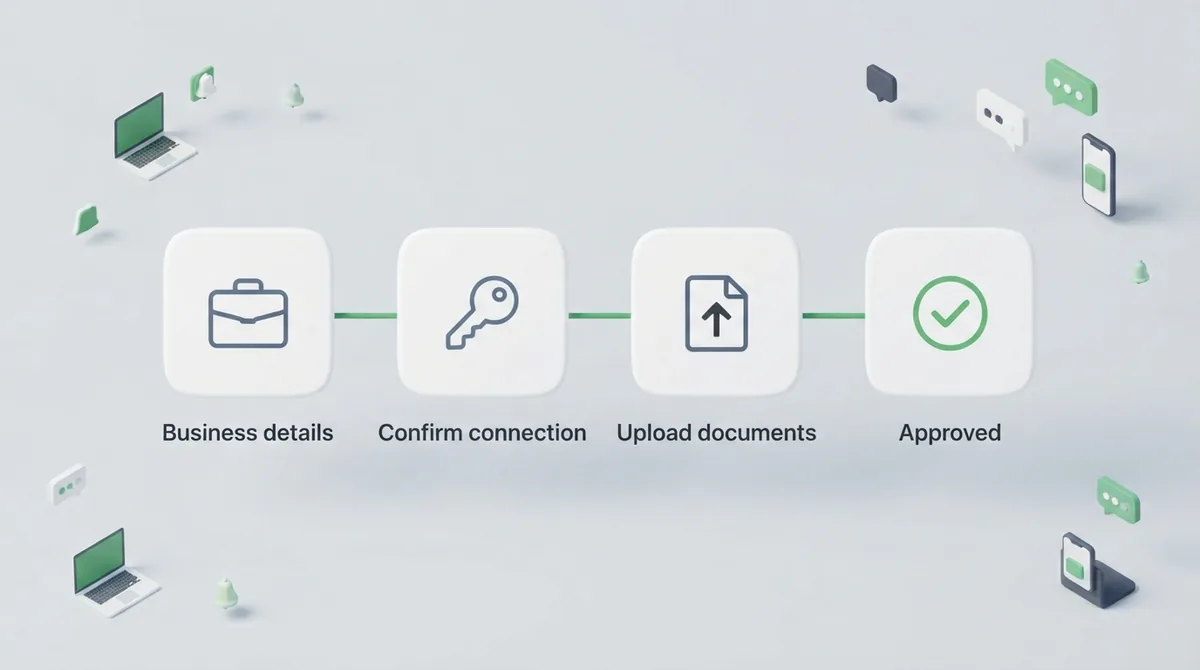
Why Meta Business Verification Gets Rejected (and How to Fix It)
A rejection is rarely final. It usually points to one fixable mismatch. These are the reasons we see most often when helping businesses through the process:
The name does not match exactly. The legal name in the form differs from the documents, even by punctuation or an abbreviation. Fix: edit the business info so it matches the registration document character for character, then resubmit.
The address or phone number differs between documents. Your registration shows an old office while your utility bill shows the new one. Fix: use documents that all show the same, current address, or update your registration record first.
The website does not support the claim. The site is down, has no HTTPS, is a placeholder, or does not mention the business name. Fix: publish at least an About or Contact page with the legal name, address and phone number, served over HTTPS.
The documents cannot be read. Low-resolution photos, screenshots, cropped edges, or black-and-white copies of colored documents. Fix: rescan the originals as full-color PDFs.
The connection could not be confirmed. The code went to a number nobody answers, or the email domain does not match the website. Fix: switch to domain verification or update the phone number in your business info before you retry.
The portfolio has a policy history. If the business portfolio or its ad accounts have been restricted, verification can be held up. Fix: resolve the open restrictions in Account Quality first.
If your WhatsApp limit increase is denied after verification, Meta may show an alert asking for more information, and identity verification is one of the suggested next steps. Do not open a second portfolio to start over. Duplicate portfolios for the same business tend to make reviews slower, not faster.
How to Scale Past 2,000: The Automatic Upgrade Rule
Once you are at 2,000, Meta upgrades you automatically when both conditions are true:
- Your messages are high quality across all your phone numbers and templates.
- In the last 7 days, you have used at least half of your current limit.
When both hold, Meta raises your limit by one tier, typically within six hours, according to Meta’s documentation.
The second condition is the one businesses miss. Meta does not raise limits for capacity you are not using. On the 2,000 tier, you need to reach at least 1,000 unique customers outside a service window during a 7-day stretch. On 10,000, that becomes 5,000. If you only send one big campaign a month, you may sit on the same tier for a long time.
A sample ramp-up plan
Say you have a 40,000-person opted-in list and just reached 2,000:
- Week 1: Send to 1,200 to 1,500 of your most engaged customers. That meets the 50% rule for the 2,000 tier while keeping quality high. You move to 10,000.
- Week 2: Send to 5,000 to 8,000 customers in segments. You move to 100,000.
- Week 3 onward: Your full list fits comfortably inside the new limit.
Start with the customers most likely to welcome your message: recent buyers, people who have replied to you before, or those who opted in recently. Their high engagement protects the quality rating that every future upgrade depends on.
Protect Your Quality Rating While You Scale
Every step past 2,000 depends on quality. Meta judges it from how recipients react: blocks, reports, and “not interested” feedback pull it down, while replies and engagement keep it healthy. You can see the rating for each phone number in WhatsApp Manager as High, Medium or Low.
Low quality does more than stall your upgrades. Templates with poor feedback can be paused and eventually disabled, which can break an order-update flow at the worst possible moment.
The habits that keep quality high:
- Message people who opted in, and tell them at sign-up what you will send.
- Segment instead of blasting. A relevant offer to 3,000 people beats a generic one to 30,000.
- Watch your frequency. Our guide on how often to send WhatsApp campaigns without getting blocked covers safe cadences by industry.
- Make opting out easy. A visible “Stop” quick-reply button costs you one subscriber; a block report costs you quality.
- Answer replies quickly. A broadcast that gets replies but no answers trains customers to ignore or block you.
Remember too that a higher limit means more messages you pay for. Meta charges per delivered template message, with rates that depend on the category and the recipient’s country. Our WhatsApp Business API pricing guide for 2026 breaks down the costs so a scaled campaign does not surprise your finance team.
How to Check Your Current Messaging Limit
You can check your limit in two places:
In WhatsApp Manager: Open WhatsApp Manager from Business Suite, go to Account tools, and open the Messaging limits panel. It shows your portfolio’s current limit, your quality rating, and whether an upgrade is in progress.
Through the API: Developers can read the whatsapp_business_manager_messaging_limit field (Graph API v24.0 and newer) on the business portfolio, WhatsApp Business Account, or phone number. The older messaging_limit_tier field now returns the portfolio’s limit and is being phased out, so update any dashboards that still rely on it.
If you are still choosing how to connect, our comparison of the WhatsApp Business App vs Web vs API explains why messaging limits only apply to the API, and when the API is worth the switch.
How ChatMaxima Helps You Scale Safely
The limit is set by Meta, but how you use it is up to you. With ChatMaxima’s WhatsApp Business Platform tools, you can:
- Segment your contacts by tags, attributes and past conversations, so the first campaigns after an upgrade go to your most engaged customers.
- Schedule broadcasts across several days to hit the 50% usage rule steadily instead of in one risky burst.
- Pause, resume or stop a running broadcast if delivery or reply numbers look wrong partway through.
- Track delivery, read and reply rates per template, so you spot a weak template before it hurts your quality rating.
- Hand replies to an AI agent or your team in a shared inbox, so customers who respond to a campaign get a fast answer.
Conclusion: Verify Once, Then Let Quality Do the Work
Increasing your WhatsApp messaging limit comes down to one manual step and one habit. The manual step is Meta business verification: match your legal details exactly, upload clear documents, confirm your connection, and you move from 250 to 2,000 unique customers a day, with room for up to 20 phone numbers. The habit is sending high-quality messages and using at least half your limit each week, which carries you automatically to 10,000, 100,000 and unlimited.
Do the verification before your next big campaign, not the day it is due to go out. Then plan the first weeks after approval as a deliberate ramp to your most engaged customers.
Ready to put that limit to work? See ChatMaxima’s plans and start sending segmented, scheduled WhatsApp campaigns that keep your quality rating high.