
A clothing store in Pune has 4,000 customers on a spreadsheet and a Diwali sale starting on Friday. The owner finds a “bulk WhatsApp sender” extension that promises unlimited messages from his own number for ₹999. By Saturday the number is banned, and with it two years of customer chats.
That story repeats every festive season. Sending one message to thousands of people on WhatsApp is completely possible and completely allowed, but only through the route WhatsApp built for it. This guide explains the options, why the shortcuts get numbers banned, what you need in place first, and how to send a bulk WhatsApp campaign step by step with the WhatsApp Business API.
Three ways to send bulk WhatsApp messages
| WhatsApp Business app broadcast list | Bulk sender tool or extension | WhatsApp Business API through a platform | |
|---|---|---|---|
| Allowed by WhatsApp | Yes | No | Yes |
| Contacts per send | Up to 256 per list | “Unlimited” (until the ban) | Thousands, within your messaging limit |
| Recipient must have saved your number | Yes | No | No |
| Needs the customer’s consent | Yes | Ignored | Yes, and you record it |
| Personal details in each message | No | Sometimes | Yes, through template variables |
| Replies handled by | You, on one phone | You, on one phone | Your team inbox, a chatbot or an AI agent |
| Delivery and read reports | Basic | Unreliable | Per contact, with error reasons |
| Cost | Free | Tool fee, plus the risk of losing the number | Meta’s per-message rate plus the platform plan |
The Business app’s broadcast list is fine for a handful of regular customers who have saved your number. It stops working as a marketing channel the moment your list passes a few hundred people, or includes anyone who has not saved you. Unofficial tools are the trap. The API is the route this guide covers.
Why bulk sender tools get numbers banned
Most “WhatsApp bulk message sender” tools work by automating WhatsApp Web or a modified copy of the app on your own number, firing messages faster than a person could. WhatsApp states plainly that its apps are “not intended for bulk or automated messaging” and that both have always broken its Terms of Service (WhatsApp Help Center).
It enforces that in three ways:
- Detection. WhatsApp says it uses machine learning together with reports from users to find and ban accounts that send unwanted automated messages (WhatsApp Help Center).
- Bans on unofficial clients. Linking your account to an unofficial app or website can get it temporarily or permanently banned, or stop it from linking devices at all (WhatsApp Help Center).
- Legal action. Since December 2019, WhatsApp has said it will also go after companies that sell or assist this kind of abuse, even on evidence found off WhatsApp, such as a company advertising that it can break the terms.
A banned number takes every conversation with it. For a business that runs its customer service on WhatsApp, that is far more expensive than any per-message fee.
What you need before your first campaign
- A number on the WhatsApp Business API. You connect it through a platform such as ChatMaxima. It can be a new number, or your existing Business app number kept on both the app and the API.
- A Meta business portfolio and a payment method in Meta’s billing, because Meta charges for marketing messages directly.
- An approved marketing template. Any message you start, rather than a reply to a customer who wrote in the last 24 hours, has to be a template that Meta has approved.
- A list of customers who said yes to WhatsApp messages from you, for example through a checkbox at checkout, a click-to-WhatsApp ad, or a “Get offers on WhatsApp” button on your site.
- Room in your messaging limit. New numbers start with a daily cap on how many customers they can message, which rises as you verify your business and send good campaigns. Our guide to increasing your WhatsApp messaging limit covers the tiers.
How to send bulk WhatsApp messages, step by step
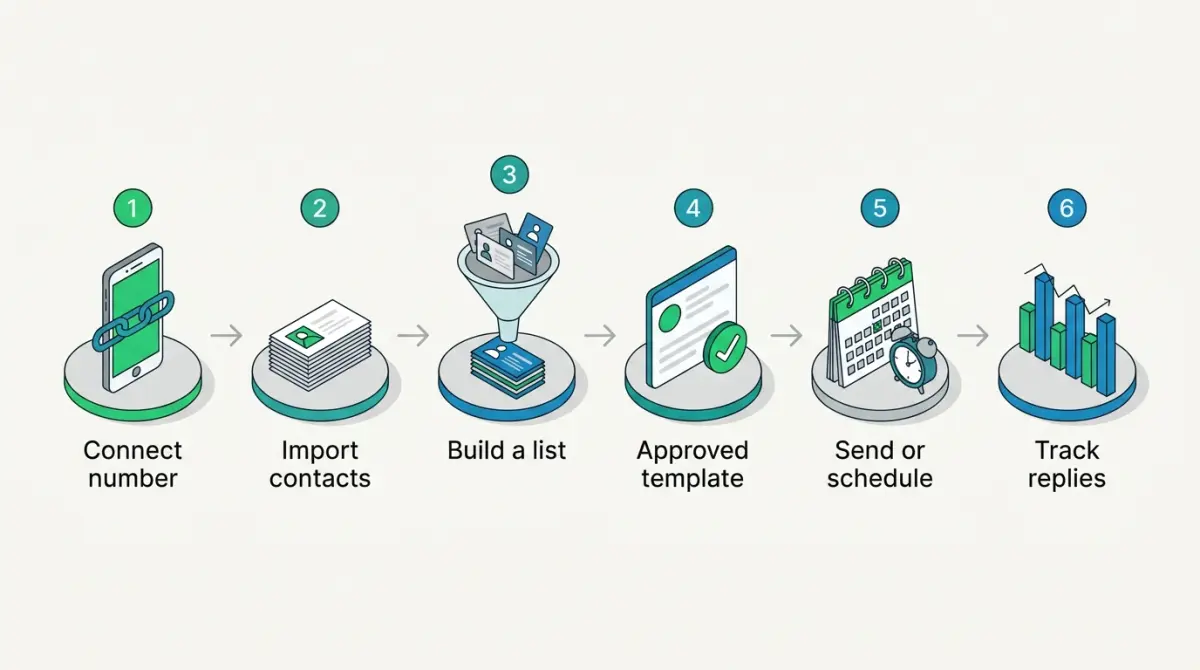
These steps use ChatMaxima. Any official platform follows the same shape.
Step 1: Connect your WhatsApp number
In Channels, add WhatsApp and sign in through Meta’s own signup window. It creates or connects your WhatsApp Business Account, verifies the number with a code, and links it to ChatMaxima in a few minutes, without any code on your side.
Step 2: Bring in your contacts
Import your customer file. ChatMaxima accepts CSV, Word, PDF or plain text, and its AI pulls out names, mobile numbers and emails automatically. Every contact needs a mobile number in international format (+91 98xxxxxxxx), because WhatsApp delivers by phone number.
Step 3: Build the audience as a list
Put the people you are messaging into a List. Two kinds are useful:
- Static lists: a fixed group you choose, such as “Diwali 2025 buyers”.
- Dynamic lists: rules that keep themselves up to date, such as “city is Pune” and “subscribed is yes”. New contacts that match join automatically.
Use a dynamic list with Subscribed = Yes as one of its rules for every marketing campaign. That is how you keep people who opted out of your messages out of the send. (When you pick individual contacts instead of a list, ChatMaxima already hides anyone who has unsubscribed.)
Step 4: Create and approve the template
Create a Marketing template with a clear header (an image of the offer works well), a short body with variables for the personal parts, and buttons. A typical festive template:
Header: image of the sale banner
Body: Hi {{1}}, our Diwali sale is live! Get {{2}} off on all kurtas till Sunday. Use code {{3}} at checkout.
Buttons: Shop now (website link) · Stop promotions
Add the marketing opt-out button (“Stop promotions”). It gives customers a one-tap way out, which keeps your quality rating healthy, and ChatMaxima marks anyone who taps it as unsubscribed. Meta reviews every template before it can be sent, so submit it a day or two before the campaign. Our free AI WhatsApp template generator helps you write one that gets approved.
Step 5: Create the broadcast
In Campaigns, create a broadcast and choose:
- the WhatsApp number to send from,
- the template, then map each variable: {{1}} to the contact’s name, {{2}} to “20%”, {{3}} to your code,
- the audience: your List, or individual Contacts,
- Test myself first, which sends the message only to your own number so you can check the image, the wording and the buttons on a real phone.
Step 6: Send now or schedule it
Send straight away, or schedule the broadcast for a time that suits your customers. The time is shown in your local timezone. Where your number is enabled for Meta’s Marketing Messages Lite API, ChatMaxima offers it as a sending option for marketing broadcasts.
Step 7: Be ready for the replies
The point of WhatsApp over SMS is that people answer. Decide before you send who handles “Is this available in XL?” and “Do you deliver to Nashik?”. The replies land in your shared inbox, where a chatbot or an AI agent can answer the common questions and hand the rest to your team with the conversation attached.
What happens after you press send
The broadcast report shows each contact’s progress: sent, delivered, read, replied or failed, with the reason for every failure. From there you can:
- Group the failures by reason in the error summary, and turn the failed contacts into a new list to clean up or retry.
- Schedule a Smart Retry for contacts who hit a temporary rate or quality limit, when an immediate resend would only fail again.
- Pause, resume or stop a broadcast that is still sending. Resume carries on from where it stopped without messaging anyone twice.
- Rely on an automatic stop. If Meta blocks the account mid-send (a payment problem, a policy restriction, a spam rate limit) or most recent messages start failing, ChatMaxima stops the broadcast instead of burning through the rest of your list.
Common bulk WhatsApp errors and what they mean
These are the codes you are most likely to see in a campaign report, with Meta’s meaning (Meta for Developers):
| Code | What it means | What to do |
|---|---|---|
| 131026 | The message could not be delivered, for example the number is not on WhatsApp or uses a very old app | Check the number; remove it if it is not on WhatsApp |
| 131047 | More than 24 hours since the customer last replied | Send an approved template instead of a free-form message |
| 131049 | Withheld by Meta to protect engagement | Do not retry at once; see our campaign frequency guide |
| 131050 | The customer chose to stop receiving marketing messages | Respect it; keep them out of future campaigns |
| 131048 | Your number is restricted on how many messages it can send, often after blocks or spam reports | Check the number’s quality rating before sending more |
| 131056 | Too many messages to the same person too quickly | Space out messages to that contact |
| 132001 | The template does not exist in that language or is not approved | Check the template name, language and approval status |
| 132000 | The number of variables does not match the template | Map every variable in the broadcast |
| 132015 | The template is paused for low quality | Edit the template and wait for it to be approved again |
| 131042 | A problem with the payment method on the account | Fix billing in Meta’s Billing Hub |
How many, how often and how much
Three questions come up with every first campaign, and each has its own guide:
- How many people can I message in a day? That depends on your number’s messaging limit, which grows with business verification and good quality. See how to increase your WhatsApp messaging limit.
- How often can I send without hurting my number? See our campaign frequency guide.
- What does each message cost? Meta charges per delivered marketing message, priced by the country your customer is in. The complete WhatsApp Business API pricing guide has the rate cards.
Frequently asked questions
Can I send bulk WhatsApp messages for free? The Business app’s broadcast lists are free, but they reach only people who saved your number, 256 at a time. Through the API, Meta charges per marketing message, and your platform has its own plan. On ChatMaxima’s free trial you can send a broadcast to up to 10 contacts to see the whole flow work.
Do customers need to save my number? Not with the WhatsApp Business API. They do need to have agreed to receive your messages on WhatsApp.
Can I send a bulk message without a template? No. Any message you start, or send more than 24 hours after the customer’s last reply, must use an approved template.
Is a bulk WhatsApp sender extension safe to use? No. These tools automate WhatsApp in ways its terms forbid, and WhatsApp actively detects and bans the accounts that use them. The official API costs a little per message and keeps your number safe.
Can I personalise each message? Yes. Template variables let every customer see their own name, offer, order or code in the same broadcast.
What should I do with the replies? Treat them as conversations, not noise. Route them to your shared inbox and let a chatbot or AI agent answer the routine questions, so customers who reply to an offer get an answer while they are still interested.