
A Facebook post that does well brings two kinds of work. The comments fill up with “price?”, “link please” and “is this still available?”, and the Page inbox fills up with the same questions sent privately. Answering both by hand works for ten people. At a hundred, someone waits until tomorrow, and tomorrow is often too late.
Facebook is still where a large share of customers are. Pew Research Center found that 71% of US adults use Facebook and 52% use it every day (Pew Research Center, 2025). Those people expect an answer: in the 2025 Sprout Social Index, 73% of social media users said they expect a brand to respond within 24 hours, and the same share said they would buy from a competitor if a brand does not respond (Sprout Social, 2025).
A Facebook auto reply setup handles the repetitive part. This guide covers what Meta gives you for free, the private reply rules every tool has to follow, how to auto reply to Facebook comments with a public reply and a DM, how to automate Messenger, and how to test and measure the result.
Two kinds of Facebook auto reply
“Facebook auto reply” means two different jobs, and most Pages need both.
| Comment auto reply | Messenger auto reply | |
|---|---|---|
| Where it starts | A comment under a Page post | A message sent to the Page |
| Who sees the first reply | Everyone, if you reply publicly; only the commenter, if you send a DM | Only the person messaging |
| What Meta allows | One private message per comment, within 7 days | Replies within the 24-hour messaging window |
| Typical use | Price questions, “send me the link”, event signups, lead magnets | Opening hours, order status, FAQs, bookings |
| Tools | Meta Business Suite, comment automation tools | Meta Business Suite, chatbots, AI agents |
Comment automation turns a public signal (“I want this”) into a private conversation. Messenger automation answers people who already came to you. The rest of this guide takes them one at a time.
What Meta Business Suite does for free
Before paying for any tool, look at what Meta already includes. In Meta Business Suite on desktop, the Inbox has an Automations section (Meta Business Help Center). The ready-made options include:
- Instant reply: a greeting sent the first time someone messages the Page.
- Away message: a reply sent when you mark yourself unavailable.
- Frequently asked questions: suggested questions people can tap in Messenger, each with a fixed answer.
- Custom keywords: a fixed reply when a message contains a keyword you set.
- Comment to message: a private message sent to people whose comment on your post contains a keyword you set.
For a small Page with simple questions, this is enough. The limits show up as volume grows:
- Exact keywords only. Matching is literal, so “how much?” and “what’s the price” need separate keywords, and each keyword can only be used in one automation.
- No public reply. The native comment automation sends a private message but does not answer under the comment, so the next person reading the post does not see that you responded.
- Desktop only, Messenger only. Rules are built in the desktop Business Suite, and the conversations live in Meta’s inbox, separate from your WhatsApp, website chat or email.
- Fixed answers. A keyword reply cannot look up an order, check a calendar or answer a question it was not written for.
The private reply rules every tool follows
Every tool that sends a DM to a Facebook commenter, Meta’s own included, uses Meta’s private replies feature. Meta’s developer documentation sets the rules (Meta for Developers):
- One message per comment. The Page can send a single private message to the person who commented.
- Seven days. The message has to go out within 7 days of the comment.
- The person has to answer. The conversation continues only if the commenter replies. After that, the normal 24-hour Messenger window applies.
- People, not Pages. You cannot send a private reply to another Facebook Page.
Two practical consequences follow. First, the first DM is your only shot, so it has to be useful on its own. Second, do not run two tools on the same comments. If Meta’s Comment to message automation and a third-party rule both watch for “price”, only one private reply can go out, and the other fails. Pick one tool per keyword, or turn the native automation off.
When you need more than the built-in tools
Most Pages move beyond Meta’s automations for one of four reasons:
- They want a public reply too. A short “Sent you the details!” under each comment tells every reader that the Page answers, and pulls more comments.
- Customers do not type your keyword exactly. “How much is the blue one?” should match “how much” without anyone predicting the full sentence.
- The team works in one inbox. Comment leads, Messenger, WhatsApp, Instagram and website chat in one place, with assignment and notes.
- Some questions need a real answer. Messenger replies that come from your own knowledge base, capture a lead or book an appointment, not a fixed paragraph.
ChatMaxima covers comments with Comment Automation and Messenger with bots and AI agents built in Studio. Here is how to set up each.
How to auto reply to Facebook comments with ChatMaxima
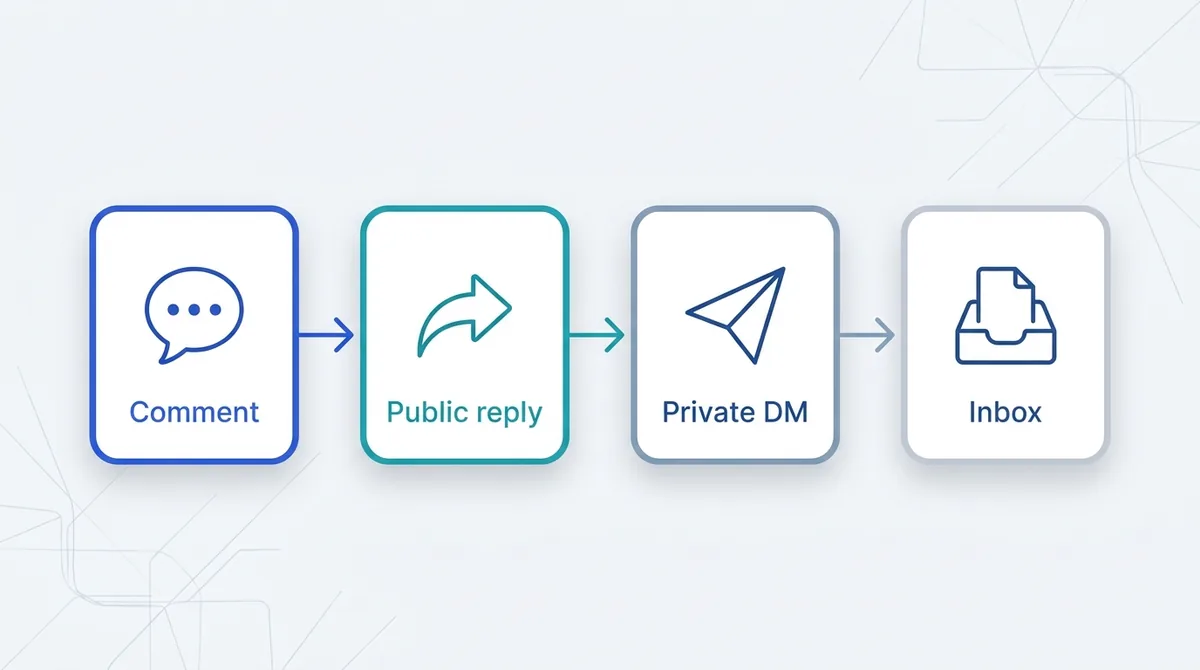
Comment Automation works with rules. Each rule watches one post or all posts on the Page for certain words. For every comment that fits a rule, ChatMaxima answers it publicly, sends your DM to the commenter through Messenger, saves the commenter as a contact and opens the conversation in your Inbox. No bot is needed.
Step 1: Connect your Facebook Page
In ChatMaxima, go to Settings, Channels, Facebook and add the Page by logging in with Facebook. Choose the Pages you want to connect. You need a role on the Page that lets you manage its messages. Once connected, the Page’s Messenger conversations also start arriving in your Inbox.
If the same business also runs Instagram, connect that too; our guide on connecting a Facebook Page with an Instagram business account walks through the link between the two.
Step 2: Find Comment Automation on the Page
Under active Facebook accounts, open the actions menu on the Page’s row and choose Comment Automation. The window lists the Page’s existing rules and has an Add rule button.
Step 3: Write the rule
Each rule has a short form:
- Rule name. Optional, but “Spring sale price questions” is easier to find later than “Rule 4”.
- Which posts? Any post on the Page, or one specific post. For a specific post, pick it from a dropdown of the Page’s 25 most recent posts, shown by date and the first line of the caption. There is no link to paste, because Facebook’s “Copy link” share URLs do not carry the post ID.
- When a comment… One of five match types, covered in the next section.
- Keywords. Comma-separated. Capital letters are ignored, so “Price” and “price” are the same.
- Also post a public reply on the comment. Switch it on and type the short reply your Page will post in the thread.
- DM message. The private message that opens the Messenger conversation, up to 2,000 characters. It is text only; it cannot contain buttons.
- Active. Switch a rule off without deleting it, for example when a promotion ends.
If you see a note saying public replies need one more Facebook permission, the Page was connected before ChatMaxima gained permission to post replies on Pages. Click Reconnect Facebook, log in again, then reopen Comment Automation; the public reply switch appears.
Step 4: Test it from a personal profile
Comment on the post from a personal Facebook profile, not as the Page. Comments the Page makes on its own posts are ignored, so your public reply never triggers another reply, and Meta does not allow a private reply to a Page anyway. Use a comment that should match and one that should not, and check that the public reply, the DM and the Inbox conversation all appear.
Step 5: Continue the chat from the Inbox
The DM shows in the ChatMaxima Inbox as the first message of a Messenger conversation with the commenter. When they answer, your team replies alongside their WhatsApp, Instagram, website chat and email conversations, with assignment, labels and internal notes. Because the commenter is saved as a contact, the conversation history stays with them.
Match types: how a comment is matched
The match type decides how strict a rule is. Here is how each one treats the keyword “price”:
| Match type | Fires on | Does not fire on |
|---|---|---|
| Contains any of these keywords | “what’s the price on the blue one?” | “how much?” |
| Exactly matches a keyword | “Price” | “price?” or “price please” |
| Starts with a keyword | “price for 2 please” | “what’s the price” |
| Ends with a keyword | “can you share the price” | “price for 2” |
| Any comment (no keyword needed) | every comment | nothing; it always fires |
Contains is the right default. People write full sentences, and contains matching catches them. Use several keywords in one rule to cover the ways people ask: “price, how much, cost, rate”.
Exactly matches suits campaigns where you tell people what to type: “Comment GUIDE and we’ll send it to you.” It ignores the commenter’s own phrasing, so it is precise but strict.
Any comment is for posts where every comment deserves the same DM, such as an event signup post. Use it on one specific post, not on all posts, or every compliment on every post gets a DM.
Rule order: the oldest rule runs first
When several rules could match one comment, rules are checked from oldest to newest, and the first match wins. Only one rule acts on each comment. So put narrow rules in place before broad ones: a specific-post rule for your sale post should exist before an all-posts “price” rule, or the general rule will answer first.
Writing public replies and DMs that get answered
A comment rule is only as good as its words. A few guidelines:
- Keep the public reply short and true. “Sent you a message with the details” is enough. It shows you answered, and it sends the commenter to Messenger. Do not post a price or a discount code publicly; the next reader sees it without context.
- Make the DM useful on its own. Meta allows one private message per comment, and the conversation only continues if they reply. Put the actual answer in the DM: the price, the link, the date.
- End the DM with one easy question. “Which size do you need?” or “Would Saturday morning work?” gives the person a reason to reply, which opens the Messenger window and starts the real conversation.
- Match the tone of the post. A playful post with a stiff, formal DM feels like a different company.
- Write for the post, not for the Page. A specific-post rule can name the product in the post. “The linen shirt is $45 and comes in four colours” beats “Thanks for your interest in our products.”
Here is a simple pair for a product post:
Public reply: Sent you the details in Messenger!
DM: Hi! Thanks for asking about the linen shirt. It’s $45, in sizes S to XL, and ships in 2 days. Which size and colour would you like?
Messenger auto replies: chatbots and AI agents
Comment Automation starts conversations. Messenger automation answers the people who message the Page directly, at any hour.
You have three levels to choose from:
- Meta’s instant reply and away message. Fine for “Thanks, we’ll get back to you”.
- A rule-based bot. In ChatMaxima Studio, build a flow with buttons for the common paths (prices, hours, track an order, talk to a person) and connect it to the Page’s Messenger. Every message gets an answer, and the flow can collect a name, phone number or email as it goes.
- An AI agent. Give the bot your website, documents and FAQs as knowledge sources, and it answers questions in its own words instead of from a fixed menu. It can also save leads to your CRM, book into Google Calendar and pass the chat to a team member when a person is needed.
When the bot cannot help, the conversation is already in the shared Inbox, so a team member picks it up with the full history. That is the main difference from Meta’s own tools: the automation and the people work in the same place.
Our guides on AI lead generation and speed to lead cover how fast replies turn into booked calls and sales.
One thing to know: on Facebook, a Comment Automation conversation goes to your team in the Inbox. Unlike Instagram, Facebook does not yet have a bot-builder comment trigger that starts a full flow from a comment. For Instagram’s version, including the comment trigger block, see our guide to replying to Instagram comments.
Ideas that work on Facebook Pages
| Business | Comment rule | What the DM does |
|---|---|---|
| Online store | Contains “price, how much, cost” on product posts | Price, sizes, delivery time, and a question about size or colour |
| Restaurant or café | Contains “menu, book, table” | Menu link, opening hours, and a question about date and party size |
| Real estate agent | Specific listing post, contains “details, viewing, available” | Price, key features, and a request for a viewing time |
| Coach or course creator | Exactly matches “GUIDE” on a lead magnet post | The download link and one question about their goal |
| Events and webinars | Any comment, on the event post only | Date, time, registration link |
| Local service business | Contains “quote, estimate” | What details they need for a quote, and a question to start |
Troubleshooting
The rule did not fire. Check, in order: the rule is active; the comment came from a personal profile, not the Page; the post target is right (specific-post rules only cover the post you picked); and the match type fits the comment. “Exactly matches” misses anything with extra words or punctuation; “contains” is more forgiving.
An older rule answered instead. Rules run oldest first and only one acts on each comment. Turn the general rule off, add the specific one, then turn the general rule back on, so the specific one comes first.
The public reply switch is missing. The Page needs to be reconnected to grant the reply permission. Use the Reconnect Facebook button in the Comment Automation window.
The DM was not delivered. Meta refuses a private reply when the comment is more than 7 days old, when the person has already received a private reply for that comment (often from a second tool watching the same keyword), or when the commenter is a Page. A DM that was not delivered does not appear in your Inbox, so the conversation list only shows messages people actually received.
The DM is too long. The DM box stops at 2,000 characters, Messenger’s limit. If an older rule exceeds it, ChatMaxima skips that rule and alerts the workspace’s owners and admins, with a link to fix it.
How to measure your Facebook auto replies
Track four numbers for each post or rule:
- Matching comments: how many comments the rule caught.
- DMs delivered: the conversations it opened in your Inbox.
- Replies: commenters who wrote back after the first DM. Your DM wording drives this one.
- Results: sales, appointments or qualified leads that came out of those chats.
Low replies with many DMs means the DM is not giving people a reason to answer; rewrite the ending question. Few DMs on a busy post means the keywords or match type are too narrow. For Messenger, watch how many conversations the bot resolves on its own and how many it hands to your team, and read the handed-over ones each week to find answers to add.
What’s next
A Facebook auto reply setup does not replace people; it makes sure nobody waits. Start with one busy post and a “contains” rule for the question you answer most, read the conversations it opens for a week, then add rules for the next questions and a Messenger bot for people who message the Page directly.
You can set up Comment Automation and Messenger bots in ChatMaxima on a free trial; ChatMaxima pricing lists the plans.